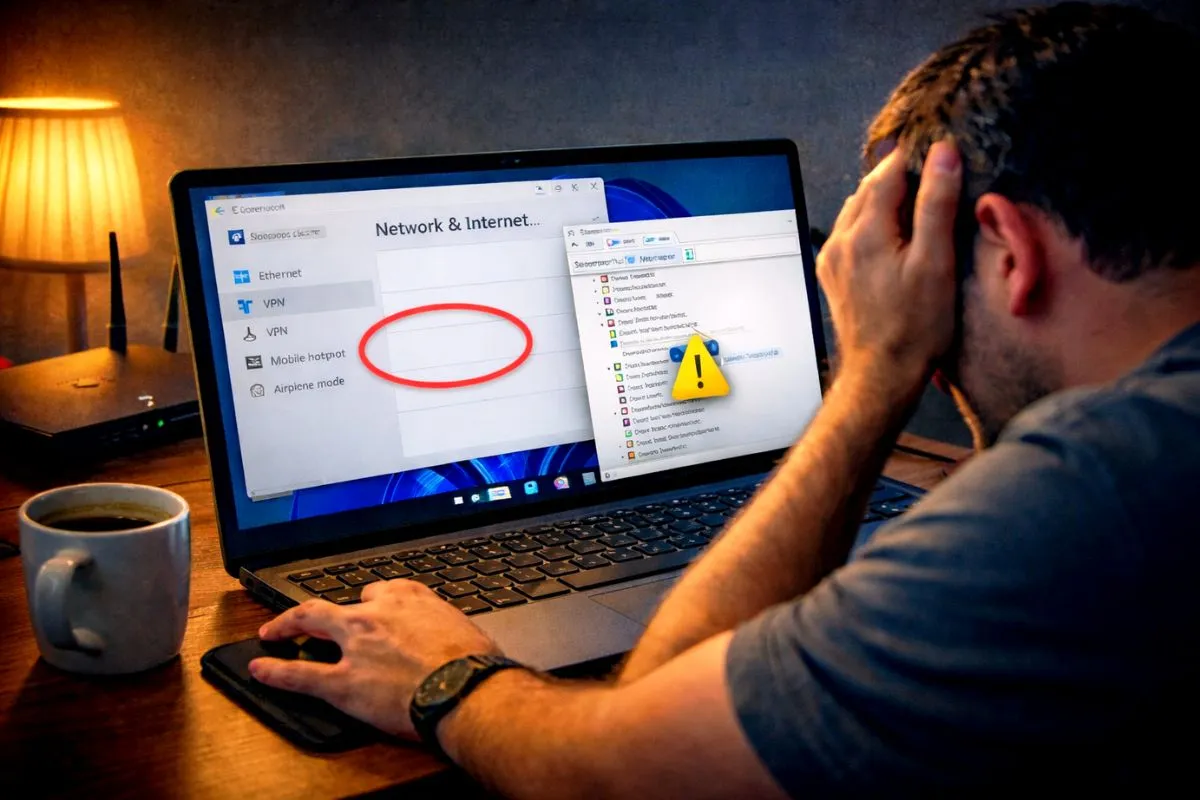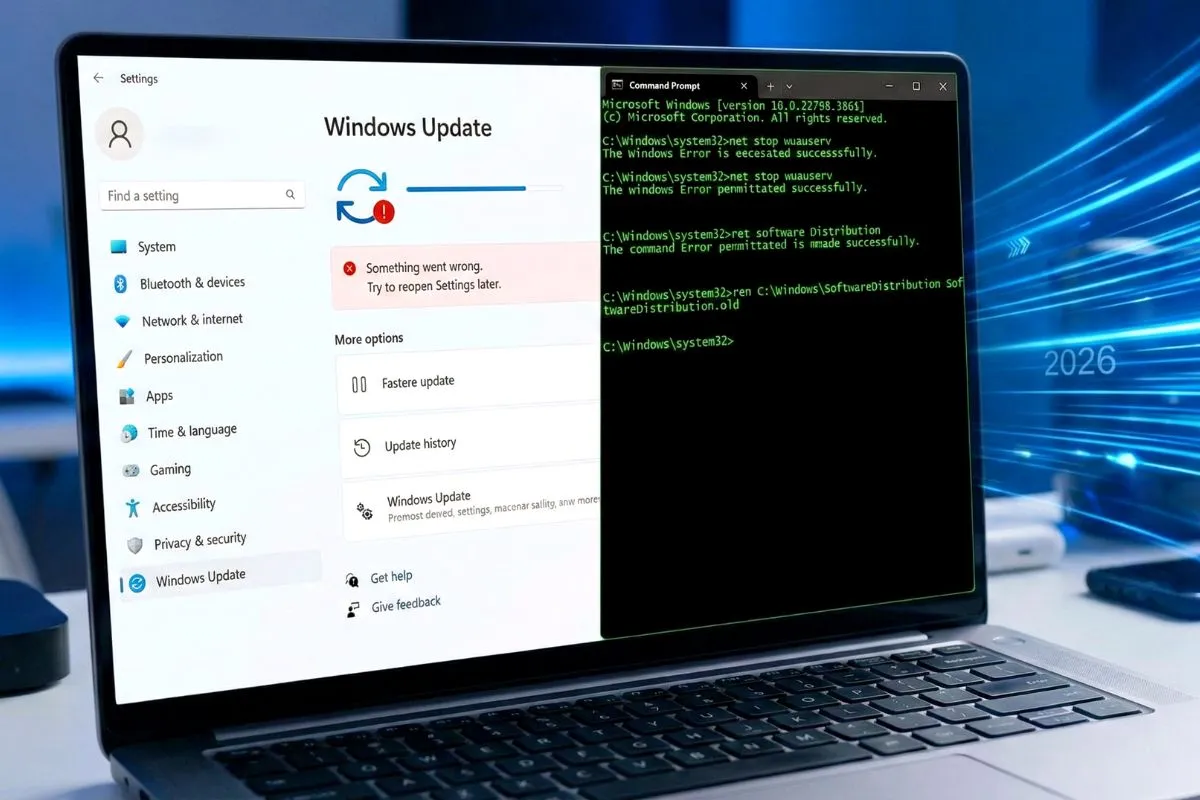
Welcome to SolvedRadar. Are you facing the dreaded windows 11 update something went wrong error? You open your Settings app to check for new security patches, but instead of the normal update page, you just see a blank screen with a message telling you to “Try to reopen Settings later.”
We know how frustrating it is when your computer’s most basic features suddenly stop working. The entire Windows Update module seems completely frozen, and you cannot even view your update history.
Take a deep breath! You do not need to reinstall Windows to fix this. This error simply means the background update services got stuck or the temporary update cache files became corrupted. Here is our direct, step-by-step guide to clearing the error and getting your updates working again in just a few minutes.
The Magic Fix: Reset Windows Update Components
Since we cannot use the normal buttons on the Settings page, we will use the Command Prompt to force a reset. This safely clears out the corrupted junk files and restarts the update services manually. This will not delete your personal files, photos, or apps.
Step 1: Open Command Prompt as Administrator
We need system-level permissions to fix this bug.
- Click the Windows Start button and type
cmd. - On the right side of the search menu, click on Run as Administrator.
- Click Yes when the screen asks for permission.
Step 2: Stop the Stuck Services
Before we can clean the corrupted files, we have to turn off the background processes that are currently using them.
Type the following commands into the black window one by one, and press Enter after every single line:
net stop wuauserv
net stop cryptSvc
net stop bits
net stop msiserver
Step 3: Clear the Corrupted Cache Folders
Now, we will rename the old folders where Windows stores broken update files. Doing this forces Windows 11 to create completely fresh, error-free folders the next time it searches for updates.
Type these commands and press Enter after each one:
ren C:\Windows\SoftwareDistribution SoftwareDistribution.old
ren C:\Windows\System32\catroot2 catroot2.old
Step 4: Turn the Services Back On
Now that the bad files are isolated, let’s turn the update engines back on so your computer can connect to Microsoft’s servers again.
Type these commands and press Enter after each one:
net start wuauserv
net start cryptSvc
net start bits
net start msiserver
Step 5: Restart Your Computer
Close the Command Prompt window and restart your PC normally. Rebooting is a very important step because it allows Windows to rebuild its update database from scratch.
What Happens Next?
After logging back into your computer:
- Go to Settings > Windows Update.
- Wait for about 10 to 20 seconds.
The page should load normally again. You will likely see a “You’re up to date.” message or a fresh list of available downloads.
The Bottom Line
The “Something went wrong.” error in Windows 11 looks scary, but it is usually just a simple glitch in the Software distribution folder. By using the Command Prompt to reset the components, you give your operating system a fresh start without losing any data.
Disclaimer: The steps provided in this guide are for educational purposes. Modifying system files carries a small risk. Always ensure you type the commands exactly as shown.