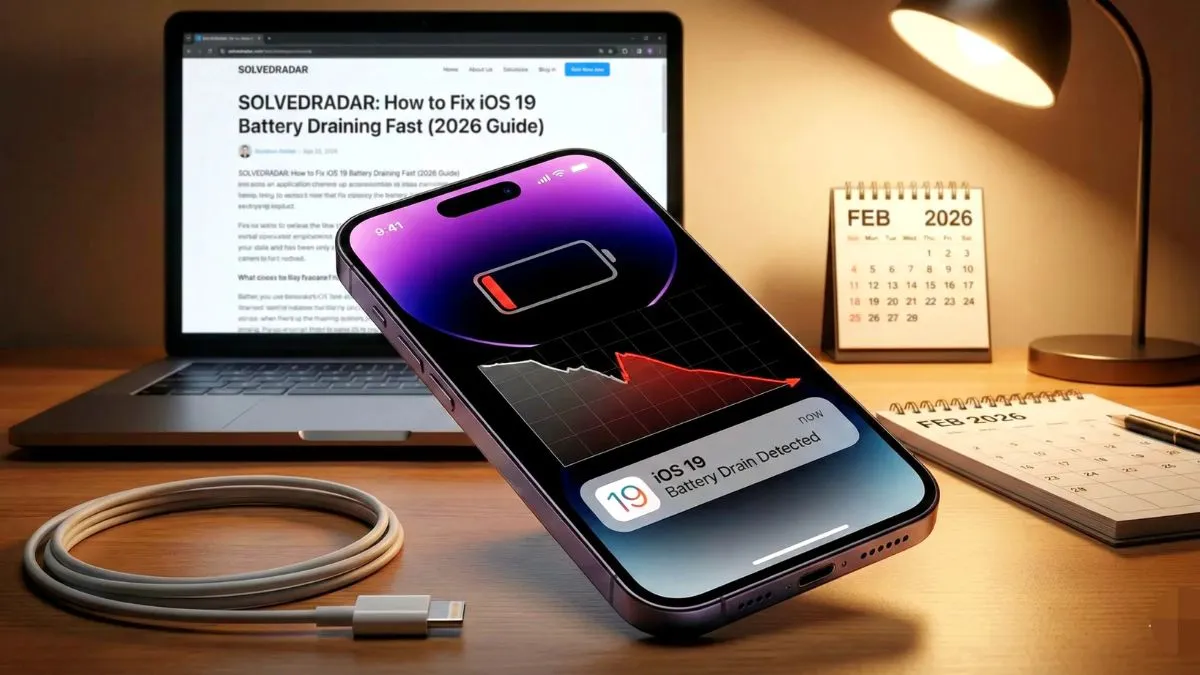
Welcome to Solved radar You just updated your phone, grabbed your morning coffee, and started your day. But two hours later, your heart sinks, your phone is already down to 40%.
We know exactly how frustrating it is to watch your battery bar turn red before lunchtime. You might be wondering if the new update broke your phone or if you need to spend money on a brand-new battery.
Take a deep breath! Having your iPhone battery draining fast on iOS 19 is actually a very common problem. The good news? Your phone is probably completely fine, and you can fix this battery drain right now from your couch.
Let’s walk through the easiest ways to stop your battery from dying, step by step.
The 48-Hour Rule: Don’t Panic Yet
Before we change any settings, you need to know a little secret: battery drain right after a big update is normal.
When you install iOS 19, your iPhone has to reorganize all your photos, apps, and files in the background. Think of it like unpacking boxes after moving into a new house. It takes a lot of energy. This background work takes about 24 to 48 hours. If you just updated yesterday, plug your phone in and wait a couple of days. It will usually fix itself.
If it has been a week and your battery is still draining, try these simple fixes below.
Fix 1: Find the “Battery Vampires”
Some apps are sneaky and eat up your battery even when you are not using them. Let’s find out who the culprit is.
- Go to Settings and tap on Battery.
- Scroll down to the list of apps.
- Look for apps that say “Background Activity” under their name.
If a random game, Facebook, or TikTok is using 30% of your battery in the background, you have found your vampire! You should either update that app (to fix its bugs) or delete it if you don’t use it.
Fix 2: Put Background Apps to Sleep
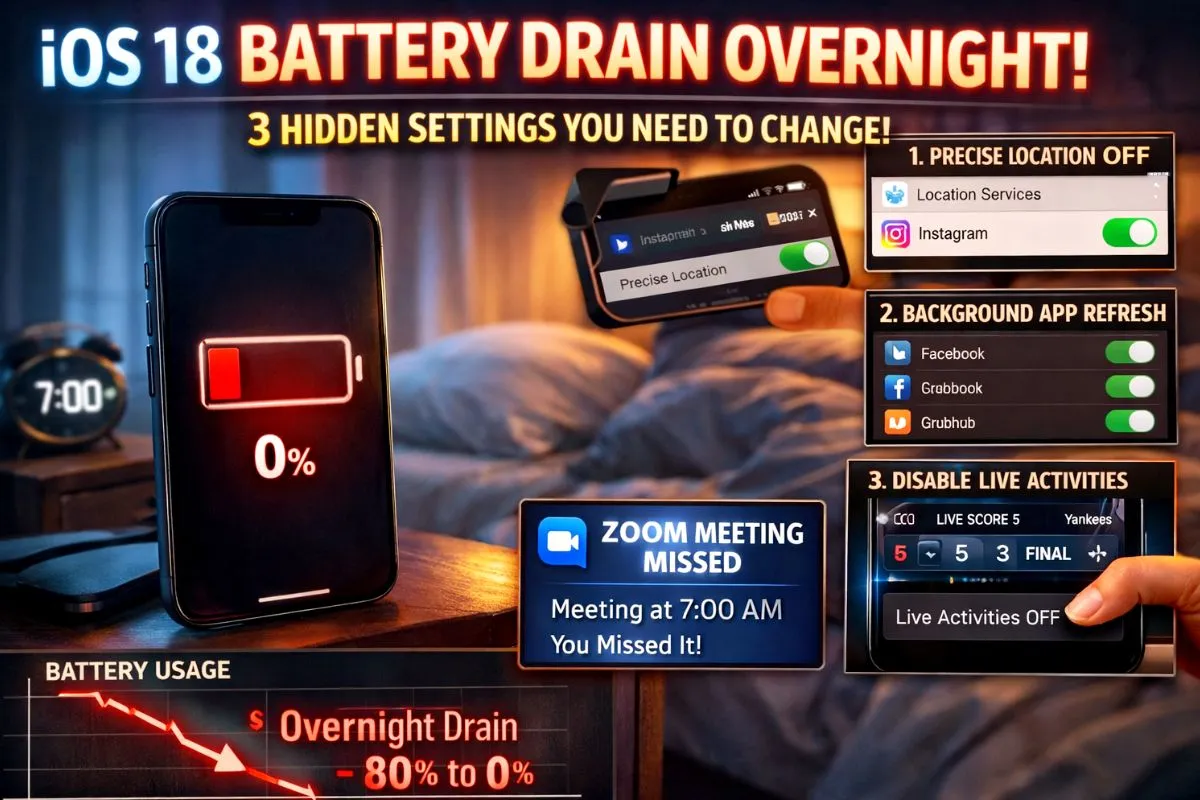
Does your food delivery app really need to refresh itself every single minute while it’s sitting in your pocket? No. Turning off background refreshes for useless apps is the oldest and best battery trick.
- Go to Settings > General > Background App Refresh.
- Do not turn the main switch off completely.
- Instead, scroll down the list and turn off the green switch for apps that don’t need instant updates like games, shopping apps, or Uber. Keep it on for important things like WhatsApp or Emails.
Fix 3: The Smart 5G Switch
5G internet is super fast, but it is a massive battery killer, especially if your signal is weak. Your phone works twice as hard trying to find a good 5G connection.
- Go to Settings > Cellular or Mobile Data > Cellular Data Options.
- Tap on Voice & Data.
- Make sure it is set to “5G Auto”, not “5G On”.
Pro Tip: If you are traveling or in a bad signal area, switch this to “LTE” (4G). It is still very fast and saves a ton of battery.
Fix 4: Tame the Always-On Display
If you have a Pro model iPhone like the 15 Pro or 16 Pro, that screen that always stays on looks beautiful, but it eats power. You don’t have to turn it off completely; just make it smarter.
- Go to Settings > Display & Brightness > Always On Display.
- Turn OFF “Show Wallpaper”.
- Turn OFF “Show Notifications”.
Now, your phone will just show a simple, pure black screen with the time. This saves a massive amount of battery power.
Fix 5: Check Your Battery’s Health
Sometimes, the software is fine, but the physical battery inside the phone is just old and tired.
- Go to Settings > Battery > Battery Health & Charging.
- Look at the Maximum Capacity percentage.
If it says 80% to 100%, your battery is healthy, and the software fixes above will work. If it is below 80%, your physical battery is degraded. No settings trick will fix this, and it might be time to visit an Apple Store for a fresh battery.
The Final Step: The “Fresh Start” Reset
If you tried everything above and your phone is still dropping 10% every hour, a hidden file might have gotten corrupted during the iOS 19 update. You can reset your settings to give it a fresh start.
Don’t worry, this will NOT delete your photos, messages, or apps! It will only forget your saved Wi-Fi passwords and alarms.
- Go to Settings > General > Transfer or Reset iPhone.
- Tap Reset, then choose Reset All Settings.