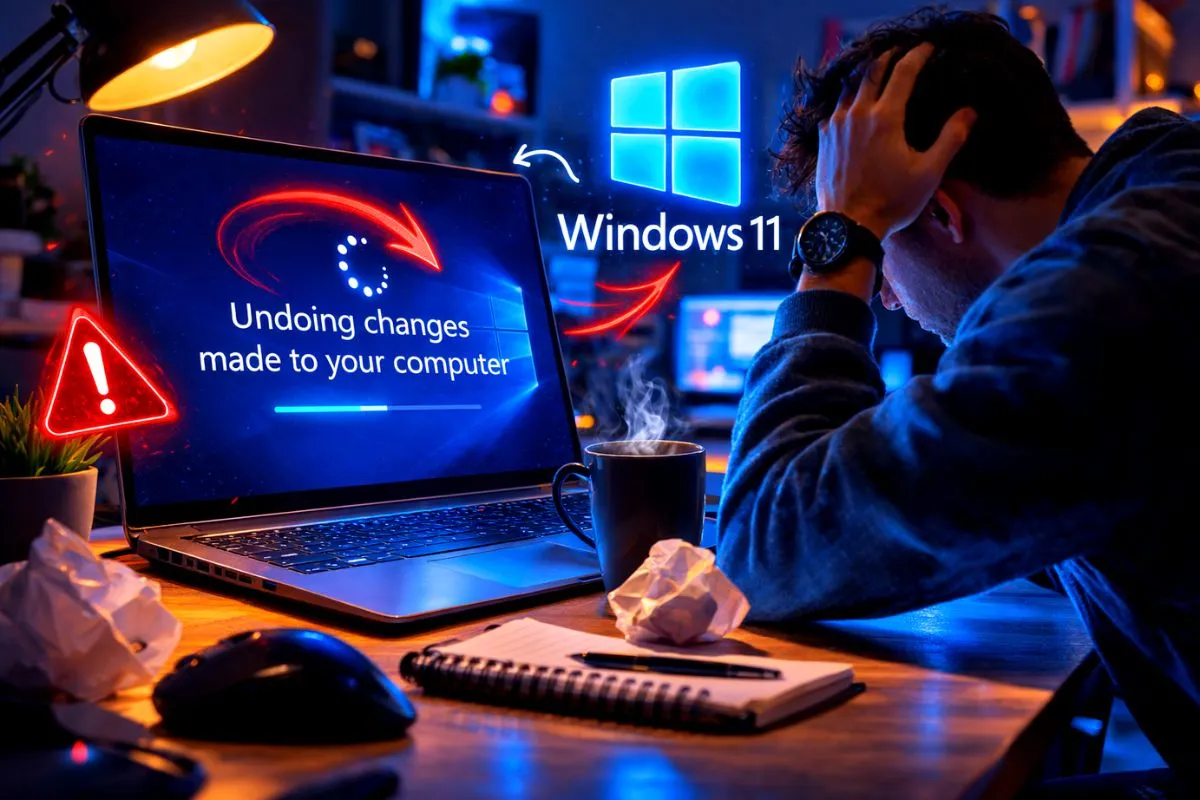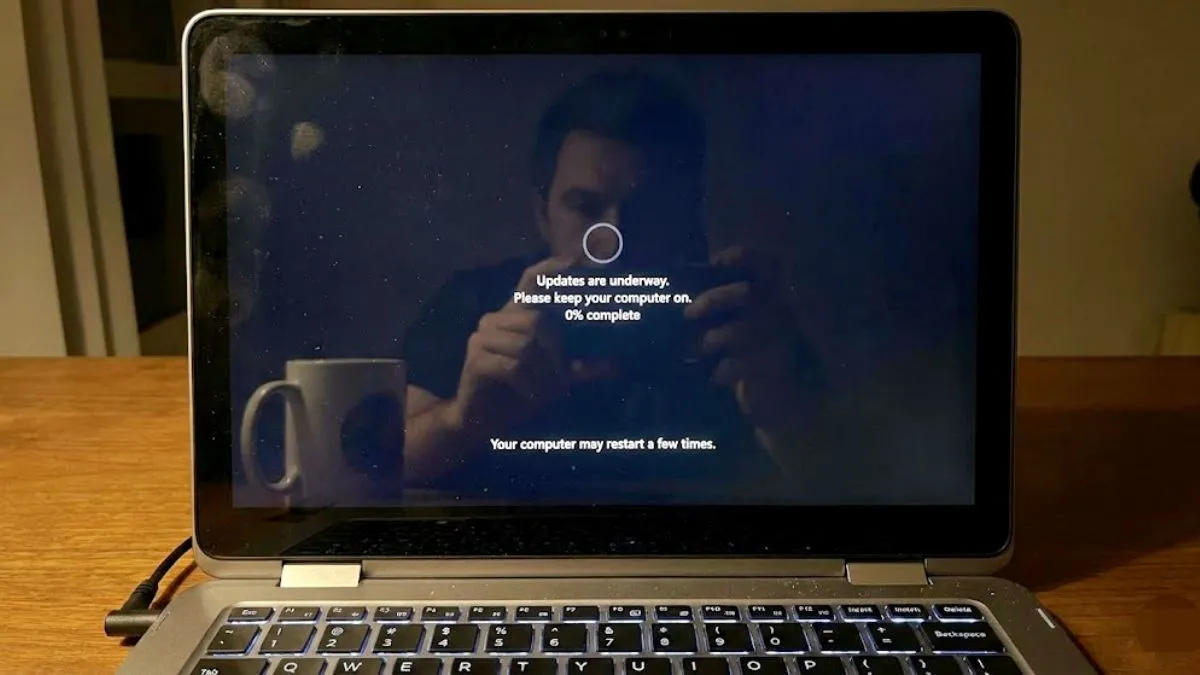
You click update and expect it to take a few minutes. Instead your screen gets frozen on installing or preparing updates for hours. Having a windows 11 update stuck on your screen is very stressful, but your computer is not broken.
This usually happens because your hard drive is completely full, a background service crashed, or the downloaded update files got corrupted. Here is exactly how to safely fix the problem right now without losing your personal files.
Fix 1 Check If It Is Actually Stuck
Before you do anything drastic, make sure the system is completely frozen. Windows updates can be incredibly slow and sometimes they just need more time.
Press Ctrl + Shift + Esc on your keyboard to open the Task Manager. Click on the Performance tab and look at your Disk activity. If the disk percentage is moving up and down, Windows is still working in the background. Leave it alone for another hour. If the disk activity stays at a flat zero percent for thirty minutes, the update is definitely stuck.
Fix 2 The Safe Hard Restart
If the screen is completely frozen and nothing is moving on your Task Manager, you have to force a restart.
Press and hold the physical power button on your computer or laptop for about ten seconds until the screen goes completely black. Wait one full minute, then turn it back on. Windows has built in recovery tools. It will usually recover itself and either finish the update or roll back to your normal desktop safely.
Fix 3 Free Up Storage Space
Windows needs at least twenty gigabytes of free space on your main C drive to unpack and install major updates. If your drive is full, the update will freeze every single time.
- Press the Windows key + R to open the Run box.
- Type
%temp%and hit enter. - A folder will open with temporary junk files. Highlight everything and delete it. Skip any files that say they cannot be deleted.
- Right click your Recycle Bin on the desktop and empty it.
- Go to your Downloads folder and delete old installers or large video files you no longer need.
Fix 4 Delete Corrupted Update Files
This is the most effective technical fix. If the update files got corrupted during the download due to a bad internet connection, Windows will get stuck trying to read them. We need to delete those broken files and force Windows to download fresh ones.
- Click the Start menu, type Services, and open the Services app.
- Scroll down to find Windows Update. Right click it and select Stop.
- Open your File Explorer and go to your C drive.
- Open the Windows folder, then open the SoftwareDistribution folder, and finally open the Download folder.
- Delete every single file inside this Download folder.
- Go back to the Services app, right click Windows Update, and select Start.
- Go to your Windows settings and check for updates again. It will download a clean copy and install perfectly.
Fix 5 Temporarily Turn Off Antivirus
Sometimes your antivirus software sees the Windows update making deep system changes and blocks it by mistake. Open your Windows Security settings or your third party antivirus app. Turn off real time protection for just ten minutes while you run the update. Remember to turn it right back on as soon as the installation finishes.
The Bottom Line
A frozen update screen looks scary but it is just a normal software glitch. Clearing up some storage space or deleting corrupted update files almost always solves the problem. If you ever face this again, just remember to check your disk activity in the Task Manager before forcing a restart.