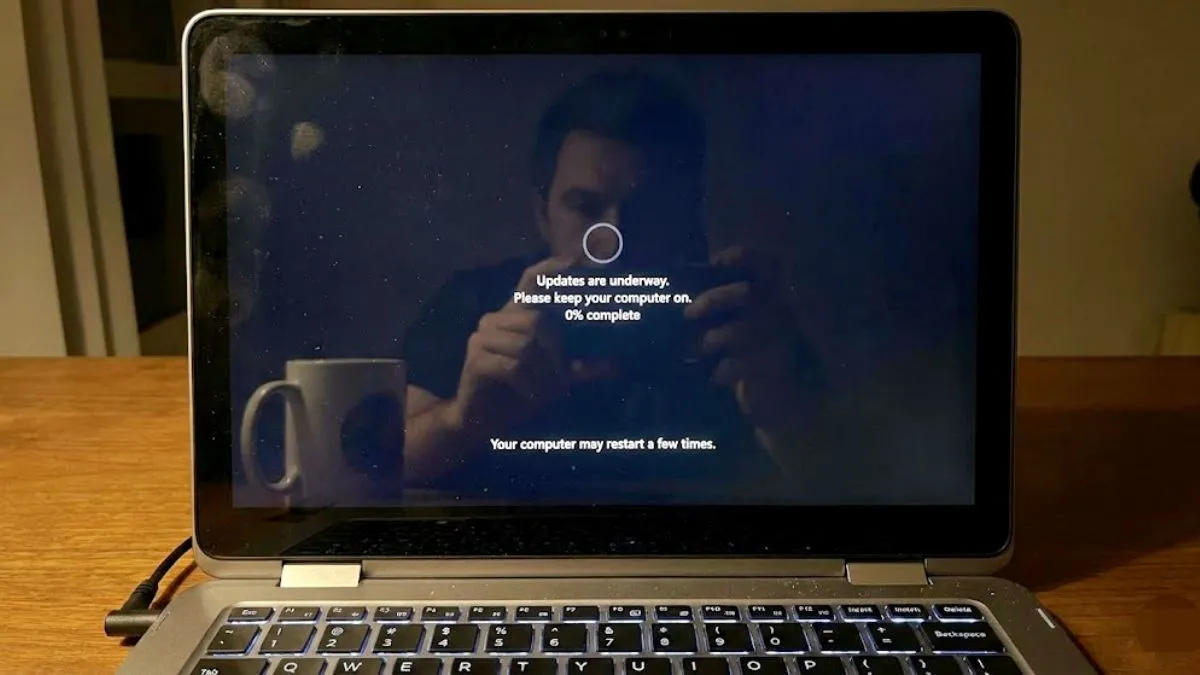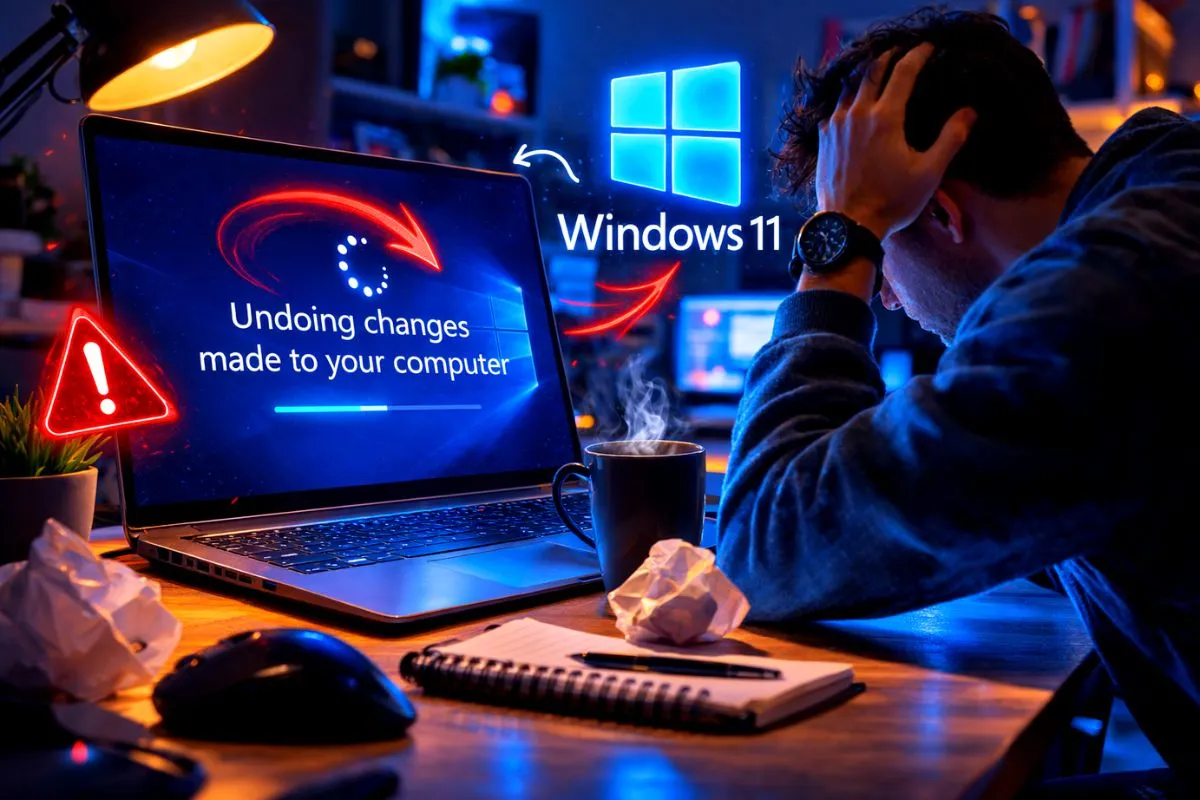
You just restarted your PC and expected it to boot up normally. Instead, your screen gets stuck on a loading circle. You are trapped in the windows 11 undoing changes made to your computer loop and it has been sitting there for hours. You did not even install anything manually, so you are probably panicking and thinking your computer is completely broken.
I woke up to this exact same error a few months ago. Do not worry and do not factory reset your system just yet. Your computer hardware is perfectly fine. This is a common software glitch. Here is exactly why this happens and the real steps to fix it right now.
Why Your Windows is Stuck
This annoying loop usually happens because an automatic Windows update failed halfway through. When an update fails, Windows automatically tries to roll back and undo the broken files to keep your system safe.
Sometimes, the rollback process itself gets stuck. This happens if you accidentally turned off your computer during a background update, if your antivirus blocked a critical system file, or if your hard drive has a corrupted sector. Your PC is basically stuck trying to reverse a change it cannot figure out.
Fix 1 Just Wait and Check the Light
Before doing anything crazy, you need to actually wait. I mean wait a full forty five minutes. Do not restart and do not force a shutdown yet.
Windows is often doing heavy background work even when the screen looks completely frozen. Look at the physical hard drive light on your computer case or laptop. If that small light is blinking, Windows is still actively working to fix the broken files. Just let it cook. If the light is completely dark and still for thirty minutes, the system is truly frozen and you need to move to the next step.
Fix 2 Force the Recovery Menu
Since your computer cannot reach the desktop, we need to force it into the hidden Windows Recovery Environment. Pressing F8 no longer works on modern Windows 11 computers. You have to trigger the automatic repair manually.
- Press and hold the physical power button on your computer for ten seconds until it shuts down completely.
- Press the power button to turn it back on.
- As soon as you see the Windows logo or your manufacturer logo appear on the screen, immediately press and hold the power button again to force it to shut down.
- Repeat this exact process three times.
- On the fourth time, let the computer boot up normally. You will see a message saying Preparing Automatic Repair.
Let it load. It will take you to a blue screen with a few options. Click on Advanced Options to enter the recovery menu.
Fix 3 Uninstall the Broken Update
Now that you are in the blue Advanced Options menu, we can tell Windows to simply delete the bad update that is causing the endless loop.
- Click on Troubleshoot.
- Click on Advanced Options.
- Select Uninstall Updates.
- Choose the option to Uninstall latest quality update.
- Let the system remove the bad files and restart.
This works almost every single time because it directly removes the exact file Windows is struggling to undo. You will not lose any of your personal photos or documents by doing this.
Fix 4 Repair System Files with Command Prompt
If uninstalling the update did not work, your core Windows system files are likely corrupted. We can fix them using the command prompt from that same blue recovery menu.
- Go back to the Troubleshoot menu and click Advanced Options.
- Click on Command Prompt.
- A black text window will open. Type
sfc /scannowand press Enter. - Let the scan reach one hundred percent. This replaces any missing or broken system files.
- Next type
DISM /Online /Cleanup-Image /RestoreHealthand press Enter. - When that finishes, type
exitand restart your computer.
These two commands force Windows to download fresh repair files directly from Microsoft servers and replace your corrupted image.
The Bottom Line
Seeing your computer stuck on a loading screen is terrifying, but it is rarely a sign of failing hardware. It is almost always just a confused Windows update. By forcing your computer into the hidden recovery menu and manually uninstalling the latest patch, you can break the loop and get back to your desktop without losing any of your important work.