You are in the middle of an important video call and your audio simply goes dead. Complete silence. Then your wireless mouse decides to go on strike and stops moving completely. You start clicking wildly but nothing happens. If you are dealing with a situation where windows 11 keeps disconnecting your bluetooth mouse or headphones randomly, you are probably incredibly frustrated.
You do not need to throw your mouse out the window or buy a new headset. Your hardware is perfectly fine. It is simply Windows playing games with your power settings. Here is exactly why this happens and the simple steps to fix it right now.
Why Your Bluetooth Keeps Dropping
Windows tries to be extremely clever with saving battery power. Sometimes it is a little too smart. The system might actually switch your Bluetooth receiver off in the background to conserve a tiny amount of power if you pause your mouse for a few seconds.
When you move the mouse again, it takes a second to wake up. This creates a terrible lag or a complete disconnection. Other times, a recent background Windows update simply corrupted your wireless driver.
Fix 1 The Quick Ten Second Reset
Before we dig into the hidden settings, you should try turning the system off and on again properly.
- Open your Windows Settings and click on Bluetooth and devices.
- Turn off the main Bluetooth toggle switch.
- Wait exactly ten seconds.
- Turn the switch back on.
- Turn the physical power switch on your mouse or headphones off and then back on.
This forces a brand new digital handshake between your computer and your devices. It might not fix a corrupted driver, but it will quickly reconnect your devices so you can finish your work.
Fix 2 Change the Power Management Settings
This is the most common reason for wireless drops. Windows is literally turning off your Bluetooth adapter to save battery.
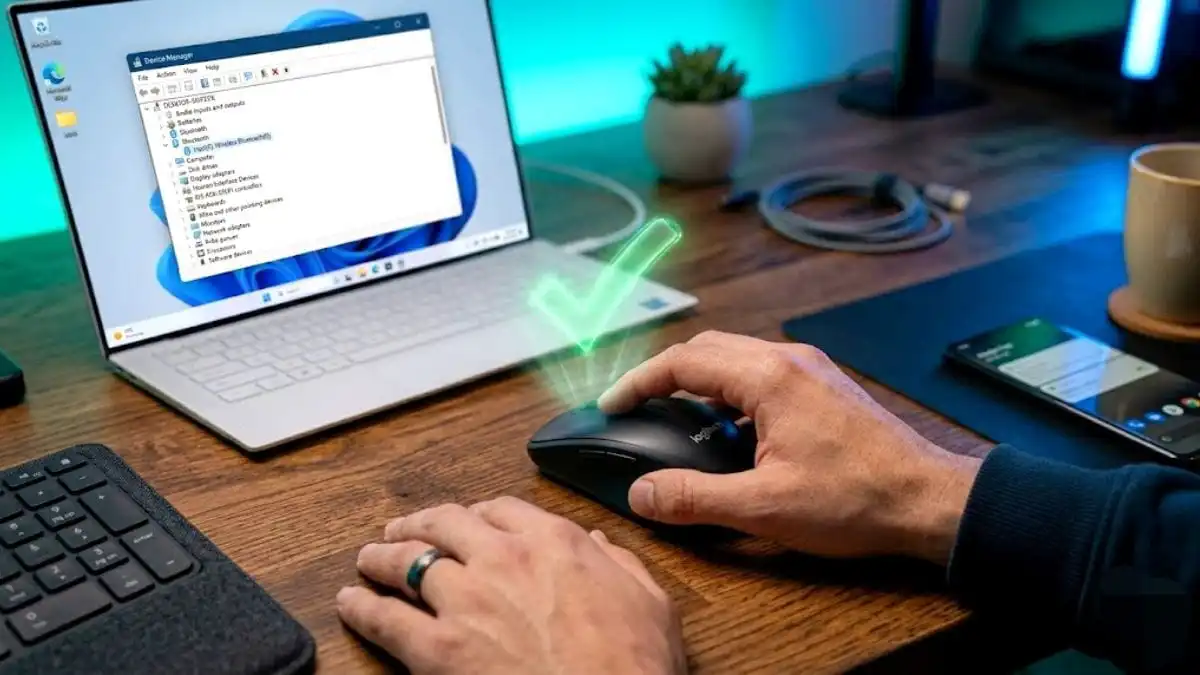
- Right click the Windows Start button.
- Click on Device Manager.
- Find the Bluetooth section and click the small arrow to expand the list.
- Look for your primary Bluetooth adapter like Intel Wireless or Realtek. Do not click the name of your specific mouse.
- Right click the main adapter and select Properties.
- Click on the Power Management tab at the top.
- Uncheck the box that says Allow the computer to turn off this device to save power.
- Click OK and restart your computer.
Your mouse and headphones will no longer go to sleep randomly. If you do not see a power management tab on your screen, just skip to the next step.
Fix 3 Restart the Bluetooth Support Service
The background program that runs your Bluetooth connections can sometimes get stuck in a sleep loop.
- Press the Windows key and the R key at the same time to open the Run box.
- Type
services.mscand press Enter. - Scroll down the long list until you find Bluetooth Support Service.
- Right click it and select Restart. If Restart is greyed out, select Start.
- Double click the service and change the Startup type to Automatic.
- Click Apply and then OK.
This forces the background service to wake up and stay running permanently.
Fix 4 Forget and Reconnect the Device
If your headphones keep cutting out, the pairing information saved on your computer might be corrupted.
- Open Settings and go to Bluetooth and devices.
- Find your mouse or headphones in the list.
- Click the three dots next to the device name and select Remove device.
- Put your mouse or headphones back into pairing mode. You usually do this by holding the physical power button until a light flashes.
- Click Add device and pair it freshly.
Fix 5 Reinstall the Main Bluetooth Driver
If a Windows update broke your connection, the only way to fix it is with a completely fresh driver.
- Right click the Start button and open Device Manager again.
- Expand the Bluetooth section.
- Right click your main Intel or Realtek Bluetooth adapter and select Uninstall device.
- If a box pops up asking to remove the driver software, leave it unchecked. Just hit Uninstall.
- Your Bluetooth will completely vanish from the list. Do not panic.
- Click Action at the very top of the window and select Scan for hardware changes.
Windows will realize the Bluetooth hardware is missing and will instantly install a clean copy of the driver.
Things That Do Not Work
Do not waste your time running the built in Windows Bluetooth Troubleshooter. It almost never finds the real issue and will just tell you your Bluetooth is turned off. Also, do not bother flushing your DNS settings. DNS has to do with internet routing and has absolutely nothing to do with local Bluetooth connections.
The Bottom Line
Dealing with a wireless mouse or headset that constantly drops connection is a nightmare when you are trying to get work done. But you do not need to run out and buy new equipment. It is almost always a software glitch. Stopping Windows from turning off the power to your adapter fixes this issue for almost everyone.