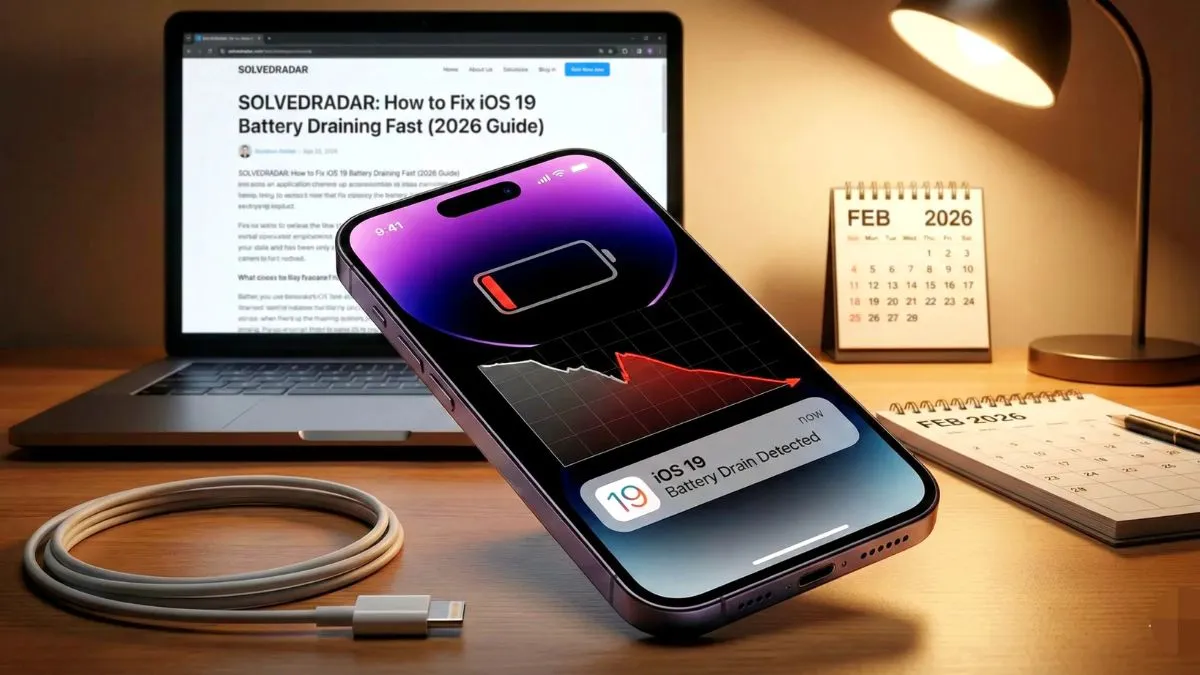
You updated your iPhone and suddenly your battery is dying by the afternoon. You have not changed how you use your phone. The only difference is the new software update. If you notice ios 18.3 apple intelligence draining your battery, you are definitely not alone.
The new AI features are heavy and consume a massive amount of power. I dealt with this exact issue on my own phone. After testing different settings, I found exactly what Apple Intelligence is doing in the background and how to stop it. Here is what you need to do right now.
Why Apple Intelligence Eats Your Battery
Apple Intelligence is a massive shift in how your iPhone works. Instead of sending requests to a server far away, your phone is now processing heavy AI tasks directly on the device. This is great for your privacy but terrible for your battery life.
When you first install the update, your iPhone scans and indexes your photos, emails, and messages to understand your personal context. This runs quietly in the background and destroys your battery life for the first two or three days. Also, every time you use Writing Tools or ask the new Siri a complex question, your phone wakes up a massive AI model. It is essentially running a small power hungry server right in your pocket.
Fix 1 Turn Off Unused Writing Tools
You do not have to turn the whole thing off to save your battery. You can just disable the specific AI features that require the most processing power. If you do not use the AI to rewrite your emails or notes, turn it off so it stops running in the background.
- Open your iPhone Settings.
- Scroll down and tap on Apple Intelligence and Siri.
- Find the Writing Tools section.
- Turn off the options you do not actively use.
Fix 2 Disable Image Playground
Generating AI images pushes your iPhone processor to its absolute limit and generates a lot of heat. Heat kills battery health very fast.
- Go to Settings and tap on Apple Intelligence and Siri.
- Find the Image generation features.
- Turn this off if you are just using it as a party trick.
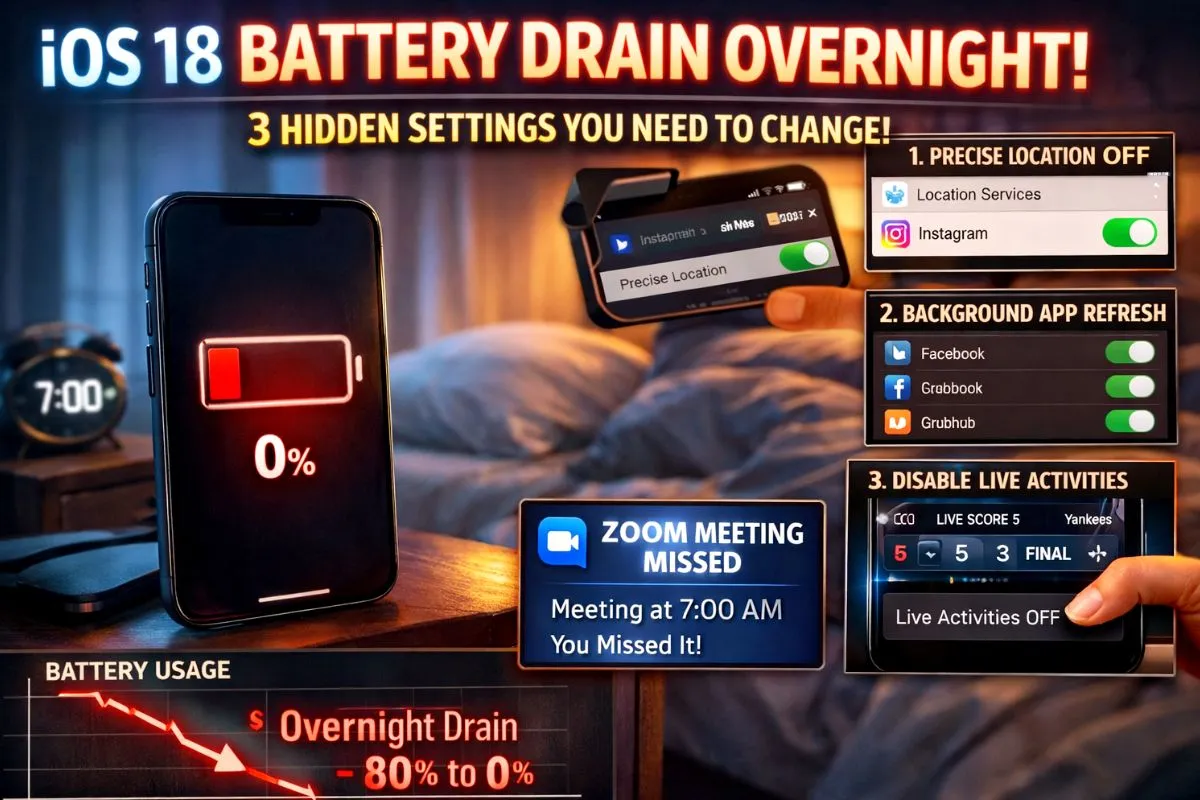
Fix 3 Stop Live Activities
Apple Intelligence relies heavily on Live Activities to pull real time data. This keeps your screen and background processors active way longer than normal.
- Go to your iPhone Settings.
- Tap on Notifications.
- Tap on Live Activities.
- Turn it off for apps that do not absolutely need it.
Fix 4 The Nuclear Option
If your battery life is critical because you travel a lot or work outside, you might just want your old phone back. Turning the feature off completely will delete the heavy AI models from your device and give you your battery life back instantly.
- Go to Settings and tap on Apple Intelligence and Siri.
- Turn off the main Apple Intelligence toggle at the top.
- Your phone will ask if you want to remove the Apple Intelligence data. Tap Yes.
- Restart your iPhone.
Once it reboots, your phone will go back to the older standard version of Siri. You lose the fancy writing tools, but your battery will go back to normal.
The Bottom Line
If you completely turned off the new AI features and your battery is still draining fast after a day or two, the AI was not your main problem. Go to your Battery settings and look at the list of apps. You likely have a rogue app like Instagram or a widget constantly refreshing in the background. Delete that specific app and reinstall a fresh copy from the App Store.