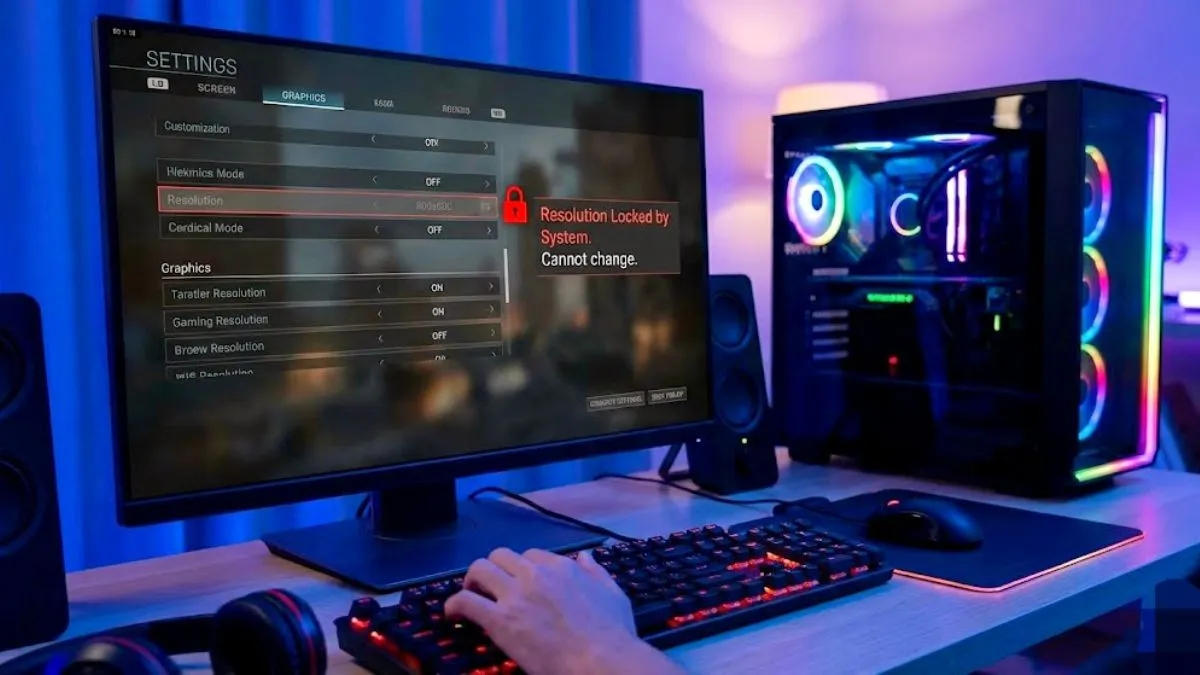
You launch your favorite game and everything looks stretched, blurry, or completely zoomed in. You go into the video settings to change it, but the resolution option is greyed out. Or maybe you change it, hit apply, and it instantly reverts back to the wrong size. Having your game resolution stuck makes it completely unplayable and hurts your eyes.
This is rarely a problem with the game itself. It is usually a conflict between your Windows display settings, your graphics driver, and the game window. Here is exactly how to fix it and get your graphics back to normal.
Fix 1 Switch to Exclusive Fullscreen
If the resolution option is greyed out and you cannot click it, your game is running in Borderless Windowed mode. In this mode, the game locks itself to whatever resolution your Windows desktop is currently using.
- Open your game settings and find the Display Mode or Screen Mode option.
- Change it from Borderless or Windowed to Fullscreen or Exclusive Fullscreen.
- Apply the settings.
The resolution dropdown menu should instantly unlock, allowing you to pick your correct monitor size.
Fix 2 Disable Fullscreen Optimizations
Windows has a built in feature that tries to optimize full screen games, but it often breaks resolution scaling, especially on slightly older games.
- Close the game completely.
- Find the main executable file for your game (the .exe file in your game folder).
- Right click the file and select Properties.
- Click on the Compatibility tab.
- Check the box that says Disable fullscreen optimizations.
- Click Apply and then OK.
Launch the game again. You should now have full control over your resolution settings.
Fix 3 Match Your Windows Scaling
Sometimes Windows display scaling confuses the game engine, making it think your monitor is a different size than it actually is.
- Right click anywhere on your Windows desktop and select Display settings.
- Scroll down to the Scale and layout section.
- Make sure the Display resolution matches your monitor native size like 1920×1080 or 2560×1440.
- Check the Scale percentage. If it is set to 125 percent or 150 percent, change it back to 100 percent.
- Open the game and see if the resolution fixes itself.
Fix 4 Delete the Game Config File
Every game saves your video settings in a small text file. If this configuration file gets corrupted, your resolution gets permanently stuck. Deleting this file forces the game to create a brand new one with default settings.
- Open your File Explorer.
- Go to your Documents folder or your local AppData folder.
- Find the folder with your game name.
- Look for a file named config, settings, or video.
- Delete that specific file. Do not delete your save game files.
- Open the game. It will start with fresh default graphics settings, and you can now set your correct resolution.
Fix 5 Clean Install Your Graphics Driver
If nothing above worked, your graphics driver is giving the game bad information about your monitor.
Do not just click update. You need a clean installation. Go to the official NVIDIA, AMD, or Intel website and download the latest driver for your graphics card. When you run the installer, look for an option that says Custom Installation and check the box for Perform a clean installation. This wipes out any corrupted display profiles and installs a fresh driver. Restart your PC and your game will work perfectly.
The Bottom Line
Dealing with a stretched or locked game screen is annoying, but it is entirely a software conflict. Changing your game to true fullscreen or disabling Windows optimizations will fix the issue almost every single time. If one specific game is still giving you a headache after trying these steps, clearing out its configuration file will give you a clean slate to set your graphics properly.