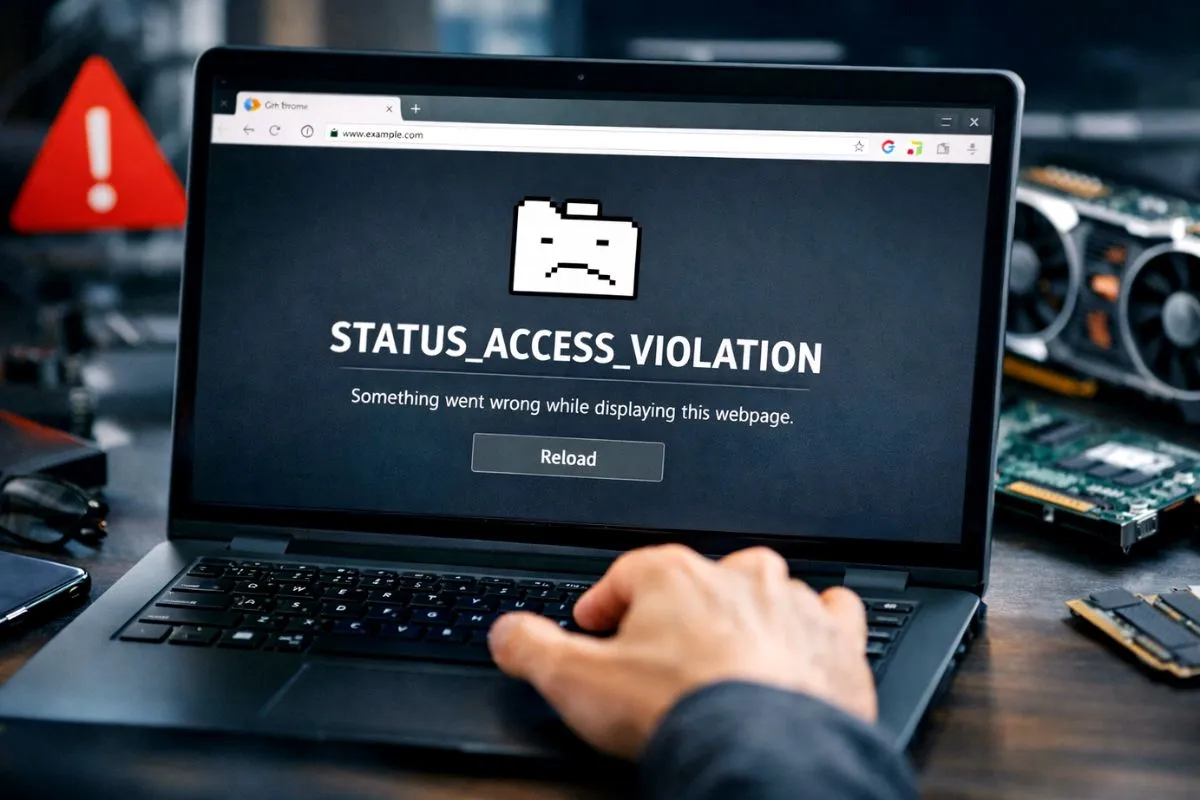
You are browsing the internet and suddenly your browser freezes. Instead of the normal unexpectedly closed message you get a strange white screen with the chrome keeps crashing with status access violation error. You open it again and it crashes again. You might be wondering if your computer is infected or if your hardware is dying.
Do not worry because your laptop is perfectly fine. This is a very specific Windows memory error. I spent hours dealing with this exact problem last month and tested every solution out there. Here is exactly what is happening under the hood and the real steps you need to take to fix it right now.
What Does Status Access Violation Mean
This error is actually Chrome trying to protect your computer. It means the browser tried to access a section of your computer memory that it did not have permission to use.
Think of it like trying to open a locked door in an office building. Instead of forcing the door open and causing damage Chrome simply stops working and crashes. This usually happens because a buggy browser extension is trying to inject bad code, your graphics driver is outdated, or your Chrome user profile got corrupted.
Fix 1 Disable All Browser Extensions
This is the number one cause of memory access violations. A poorly coded extension tries to use more memory than Chrome allows and causes an instant crash.
- Open Chrome and click the three dots in the top right corner.
- Go to Extensions and select Manage Extensions.
- You will see a list of everything installed. Click the toggle switch to turn every single extension off.
- Close Chrome completely and open it again.
If the browser stops crashing you know an extension was the culprit. Turn them back on one by one until the crash happens again. Once you find the bad extension click remove to delete it permanently.
Fix 2 Turn Off Hardware Acceleration
Chrome uses your graphics card to load heavy websites faster. If your graphics driver is outdated it will mismanage the memory and trigger the chrome keeps crashing with status access violation error again.
- Open Chrome and click the three dots menu.
- Select Settings and scroll down to the System section on the left side.
- Find the option that says Use hardware acceleration when available.
- Turn the toggle switch off.
- Click the Relaunch button that appears.
This forces Chrome to use your main processor instead of your graphics card. It might make heavy websites load a fraction of a second slower but it will completely stop the memory crashes.
Fix 3 Rename the Chrome Application File
This sounds like a weird hack but it works incredibly well. Sometimes Windows gets confused and applies the wrong memory permissions to the main Chrome application file. Renaming the file forces Windows to give it fresh permissions.
- Close Chrome completely.
- Right click the Chrome shortcut on your desktop and select Open file location.
- You will see a file highlighted simply named chrome.
- Right click that file, select Rename, and change it to chrome1.
- Press Enter and double click the new chrome1 file to open the browser.
If this fixes the crashing you can right click the new file, select Send to, and create a new desktop shortcut for easy access.
Fix 4 Delete the Hidden Cache Folder
Most people just click clear browsing data in the settings and think they are done. That is not enough for this error. You need to manually delete the hidden corrupted cache files deep inside your Windows folders.
- Close Chrome completely.
- Press the Windows key and the R key at the same time to open the Run box.
- Type
%localappdata%\Google\Chrome\User Dataand press Enter. - Open the folder named Default.
- Find the folders named Cache and Code Cache and delete both of them.
- Close the window and restart Chrome.
Manually deleting these ensures you are actually getting rid of the bad data causing the memory conflict.
Fix 5 Clean Install Chrome the Safe Way
If you are still getting the error your core profile files are deeply corrupted. We need to completely wipe the browser and install a fresh copy without losing your passwords or bookmarks.
- Open Chrome, click your profile picture, and make sure Sync is turned on to save your data to your Google account.
- Press the Windows Key, type Control Panel, and open it.
- Click on Uninstall a program.
- Find Google Chrome and click Uninstall. Check the box to delete your browsing data when it asks.
- Open the Run box again, type
%localappdata%\Googleand hit Enter. If you see a Chrome folder left behind, delete it manually. - Download a fresh copy of Chrome using Microsoft Edge and install it.
When you sign back into your Google account all your bookmarks will instantly come back but the corrupted files causing the crash will be gone forever.
The Bottom Line
The memory access violation error is very annoying but it is actually a safety feature preventing system corruption. Disabling your extensions or turning off hardware acceleration fixes this problem almost every single time. Make sure you only install trusted extensions from the web store to prevent this from happening again in the future.