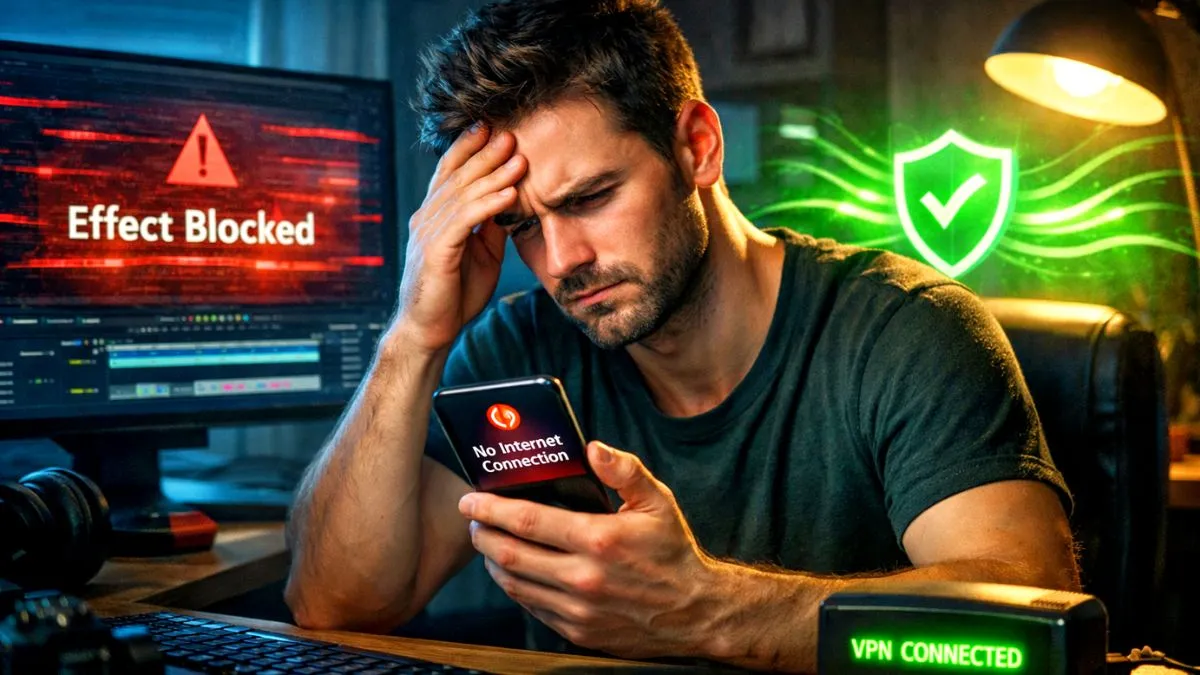
You are editing a video and everything is going well. But when you try to add an effect, you get a popup saying there is no internet connection. The frustrating part is that your WiFi is working perfectly fine. You can browse other apps but you are suddenly dealing with the capcut effects not working error. Sometimes it even says too many people are using this feature.
I ran into this exact problem and spent way too long trying to figure it out. It turns out your phone and your internet are perfectly fine. Here is exactly why this happens and the simple tricks to fix it forever.
Why CapCut Blocks Your Effects
The no internet connection error is basically CapCut giving you a misleading message. The real problem is that CapCut servers are completely overloaded in your specific region.
When millions of people try to use the app at the exact same time, the local servers hit their maximum capacity. To prevent the entire system from crashing, CapCut intentionally blocks access to heavy features like effects and filters. It is an intentional load management system and not a glitch on your phone.
Fix 1 Use a Free VPN
Since the servers in your country are full, the easiest way to solve the capcut effects not working issue is to virtually move your phone to a different country. You can do this using a free VPN.
- Go to your app store and download a free app called Power VPN.
- Open the VPN app and skip the ads.
- Look for the server selection list and find the United States.
- If it shows multiple servers with ping numbers, select the one with the lowest number for a fast connection.
- Tap the big connect button.
- Wait for the small VPN icon to appear at the top of your phone screen.
Now open CapCut and try the effects again. Because CapCut now thinks you are in the US, it connects you to their American servers which have plenty of space. The effects should instantly load. Once you apply them to your video, you can safely turn the VPN off.
Fix 2 Clear the Corrupted Cache
If you turned on the VPN and the effects still show a blank screen, your CapCut app is likely holding onto a corrupted cache file. It is trying to load the broken data instead of pulling fresh effects from the internet.
- Go to your phone Settings.
- Tap on Apps and find CapCut in the list.
- Tap on Storage and cache.
- Tap Clear Cache. Do not tap Clear Data or you will lose your drafted projects.
- Close CapCut from your recent apps menu.
- Make sure your VPN is still connected to the US.
- Open CapCut and try the effects menu again.
Combining the VPN trick with a fresh cache clear works almost every single time.
Fix 3 Check for CapCut Updates
Sometimes the capcut effects not working problem is caused by an outdated app version. CapCut frequently releases background updates to fix server bugs and connection errors.
- Open the Google Play Store or Apple App Store.
- Search for CapCut.
- If you see an Update button instead of Open, tap it.
- Let the new version install completely before opening your project.
Running an older version of the app can cause it to lose sync with the main effects server. Keeping it updated ensures you always have the smoothest editing experience.
The Bottom Line
It is definitely annoying that we have to use a workaround just to add a video filter. CapCut really needs to upgrade their regional servers to handle all this traffic. But until they do, keeping a free VPN handy and clearing your cache is the quickest and most reliable way to bypass their server limits and get your video editing back on track.