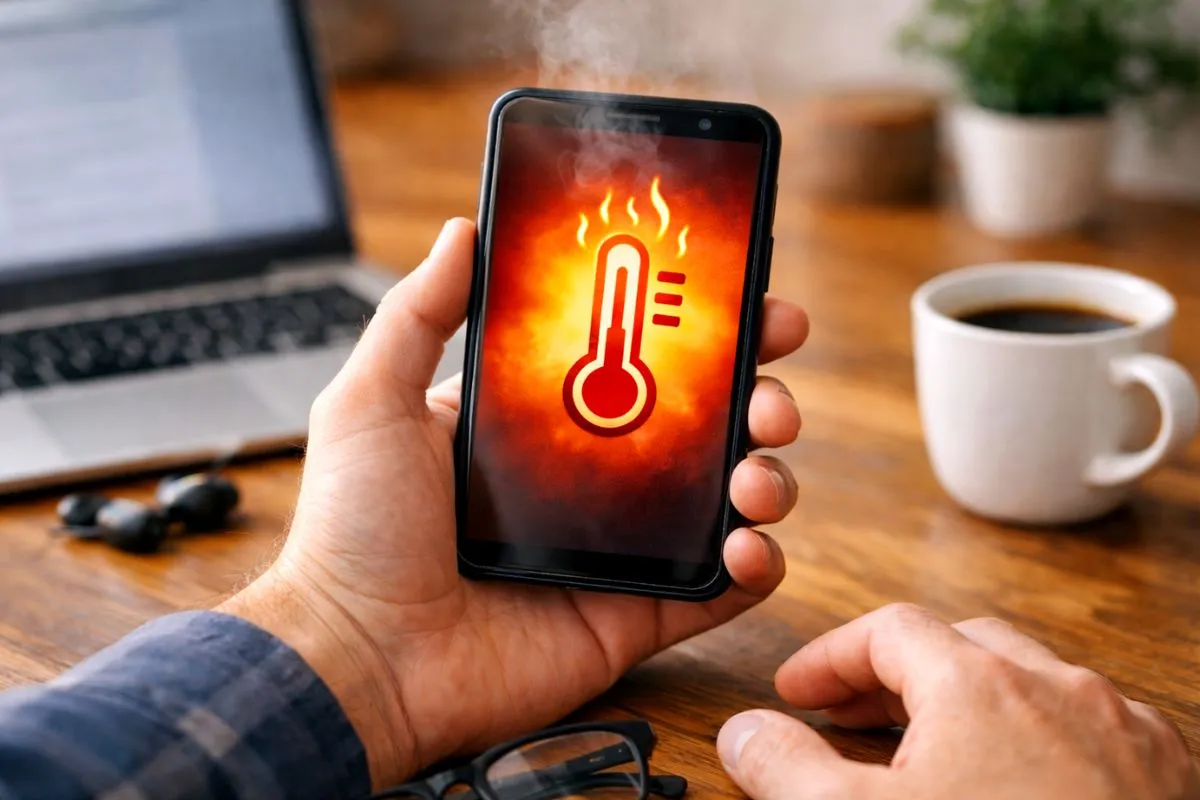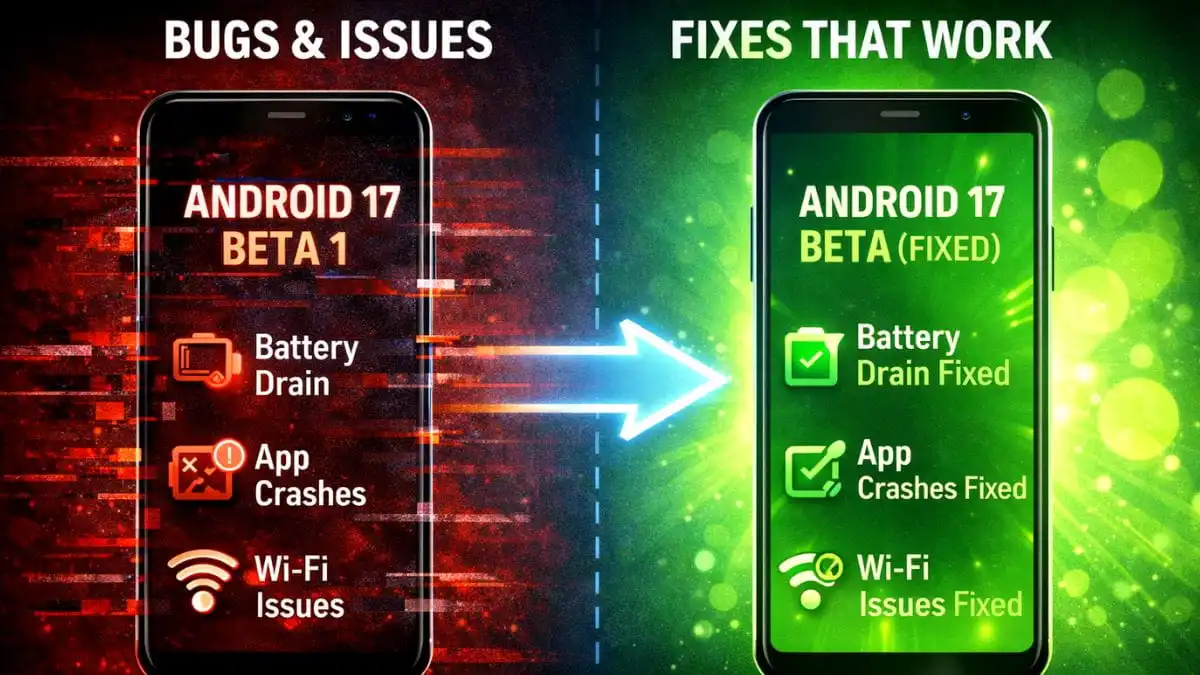
Welcome to SolvedRadar. Are you dealing with massive android battery drain after february 2026 update? You just clicked “Update” on your phone, hoping for better performance and new features. Instead, your phone is now heating up in your pocket and losing 10% of its battery every hour.
We know how annoying it is to carry a charger everywhere you go. If you are using a Google Pixel or a Samsung Galaxy, you are not alone. Forums are packed with users complaining about massive battery drain after installing the recent February 2026 security patch.
Take a deep breath. The good news is that your physical battery is not damaged. The software is just a little confused. Let’s walk through the exact steps to stabilize your battery life right now, so you don’t have to wait for the next update.
The 48-Hour Rule: Read This First
Before you start changing settings, you need to know about “Runtime Optimization.”
After a major security patch, Android recompiles every single app on your phone to make sure it works perfectly with the new system files. This heavy background work eats a lot of battery and makes the phone warm.
The Fix: Plug your phone into the charger overnight and give it 48 hours to finish organizing itself. If it has been 3 days since you updated and the battery is still terrible, move on to the steps below.
Fix 1: The “Pro Move” – Wipe the Cache Partition
This is the secret weapon that tech experts use. It clears out all the old, corrupted temporary files from January that might be fighting with the new February update. This will not delete your photos, apps, or messages.
For Samsung Galaxy Users:
- Turn off your phone completely.
- Connect your phone to a PC using a USB cable This is a very important step for One UI 8.
- Press and hold the Power button and the Volume Up button at the same time until the Samsung logo appears.
- Use the volume keys to scroll down to Wipe Cache Partition and press the Power button to select it.
- Select Yes to confirm. Once it is done, select Reboot System Now.
For Google Pixel Users:
Pixels handle this slightly differently, but you can force an app optimization easily:
- Plug your phone into the charger.
- Go to Settings > Apps > See all apps.
- Let the entire list load fully, and then simply restart your phone.
Fix 2: Tame the Google App
Many reports suggest that the February 2026 update causes the main Google App to get stuck in a loop, constantly trying to sync data in the background. Let’s put a stop to it.
- Go to Settings > Apps > See all apps.
- Scroll down and find the Google app the one with the G icon.
- Tap on Storage & Cache.
- Hit Clear Cache. Do not hit “Clear Storage” unless absolutely necessary, or you will lose your Google Assistant voice settings.
- Bonus: Do the exact same steps for the app named Google Play Services.
Fix 3: The 5G Heat Check
If your phone feels physically hot to the touch, the update might have messed up the modem driver, making your phone struggle to hold onto a 5G signal. A struggling modem is a massive battery killer.
- Go to Settings > Network & Internet > SIMs (or Mobile Networks).
- Change the Preferred Network Type from 5G to LTE or 4G.
- Test this out for 24 hours. If your battery life goes back to normal and the phone cools down, keep it on 4G until the March update fixes the 5G bug.
Fix 4: Reset Network Settings
If the network is still acting funny, you can give your phone’s connections a completely fresh start.
- Go to Settings > System > Reset Options On Samsung, look under General Management.
- Tap Reset Mobile Network Settings or Reset Wi-Fi, Mobile & Bluetooth.
- Note: You will need to type in your Wi-Fi passwords again after doing this.
The Bottom Line
Doing the Cache Wipe and having a little patience usually fixes 90% of update bugs. If you still notice rapid drain after trying all of this, check your Battery Usage stats in Settings. You might just have one rogue, outdated app that hasn’t been updated for 2026 yet!l.
Disclaimer: These troubleshooting steps are for educational purposes. Always back up your important photos and data before making big system changes.