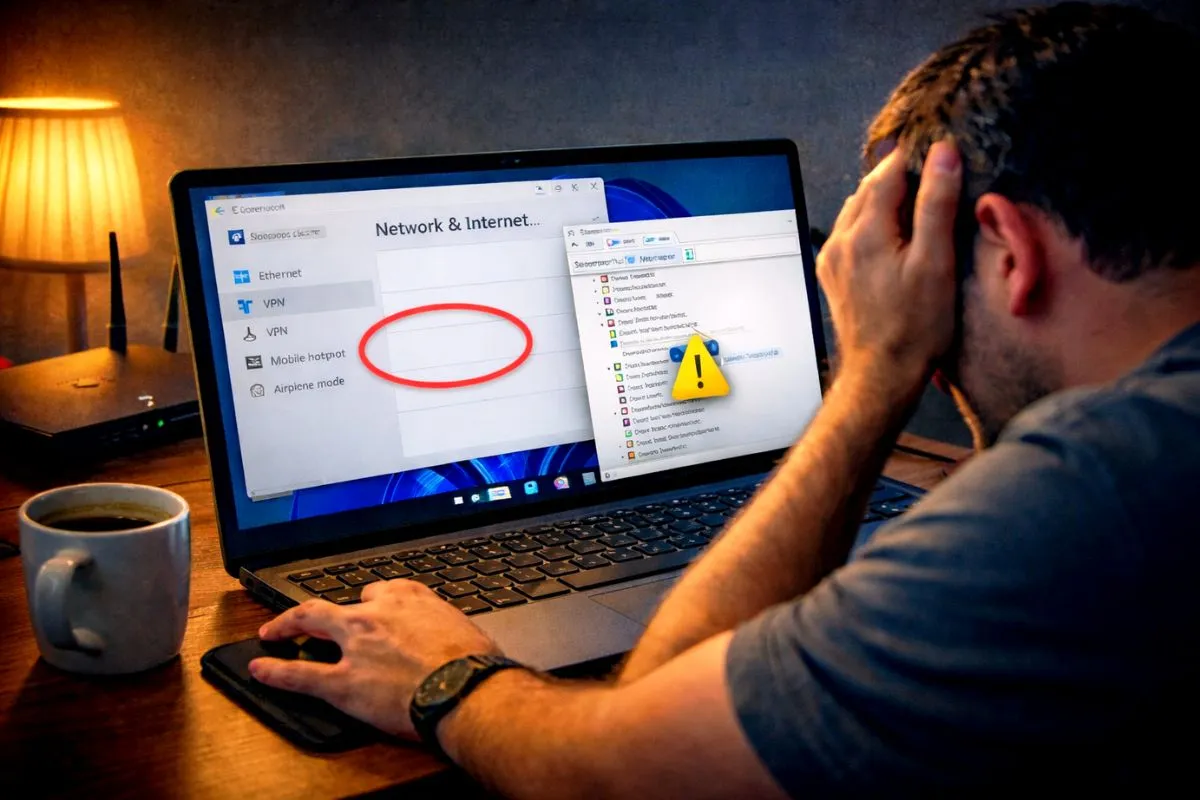
Dealing with the windows 11 wifi option disappeared error can be incredibly stressful. You open your computer to browse the internet, and the actual button has completely vanished from your taskbar. I know this makes you think your laptop hardware is dying, but do not panic and do not listen to forums telling you to reinstall Windows. This is a very common software glitch. Your computer is fine. Here is exactly why this happens and the simple steps to get it back right now.
Do not panic and do not listen to forums telling you to reinstall Windows. This is a very common software glitch. Your computer is fine. Here is exactly why the windows 11 wifi option disappeared and the simple steps to get it back right now.
Why Your WiFi Option Vanished
This usually happens because Windows Update quietly broke something in the background. Your WiFi hardware relies on a software driver to communicate with Windows. If that driver gets corrupted, outdated, or accidentally disabled by the system, Windows simply hides the WiFi button because it thinks the hardware no longer exists.
Fix 1 The Simple Restart
Before trying anything complicated, you should actually restart your computer. Do not just close your laptop lid. Click the Windows Start menu, select the Power icon, and hit Restart. Sometimes Windows just needs a fresh boot to reload the missing drivers. If the button is still missing after the restart, move to the real fixes below.
Fix 2 Enable Your Network Adapter
Your WiFi adapter might just be disabled in the background. This is the most common reason for this problem.
- Right click the Windows Start button at the bottom of your screen.
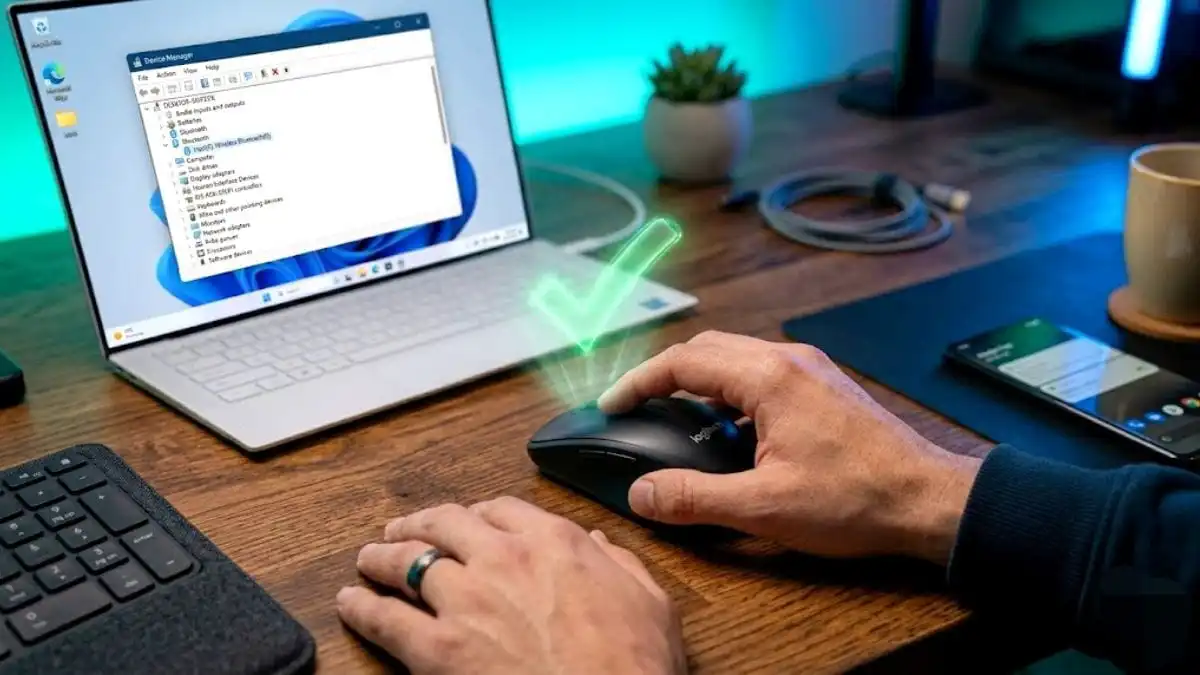
- Click on Device Manager.
- Find the Network adapters section and click the small arrow to expand the list.
- Look for your WiFi driver. It usually has Intel, Realtek, or Wireless in its name.
- If it has a small yellow exclamation mark or a downward pointing arrow, right click it.
- Select Enable device.
Restart your computer. This single click wakes up the hardware and brings the WiFi button back for most people.
Fix 3 Update Your WiFi Driver
If enabling the adapter did not work, your driver file is probably corrupted and needs to be replaced.
- Open Device Manager again and expand Network adapters.
- Right click your WiFi adapter and select Update driver.
- Click Search automatically for drivers.
- Let Windows find and install the fresh files.
If Windows cannot find a new driver, you might need to use another computer to download the latest WiFi driver directly from your laptop manufacturer website. You can move the file to your broken laptop using a USB flash drive and install it manually.
Fix 4 Disable and Re-enable the Adapter
If the driver looks completely fine in the Device Manager but your WiFi is still missing, we need to force a hard reset on the hardware.
- Open Device Manager and find your WiFi adapter again.
- Right click it and select Disable device.
- Click Yes when the warning pops up.
- Wait ten full seconds.
- Right click the adapter again and select Enable device.
This forces Windows to drop the connection and wake the hardware up from scratch.
Fix 5 The Network Reset Option
If nothing above worked, you can wipe all your network settings and let Windows rebuild them completely fresh.
- Go to your Windows Settings.
- Click on Network and internet.
- Scroll down and click on Advanced network settings.
- Click on Network reset.
- Hit the Reset now button.
This will restart your PC and delete all your saved WiFi passwords and VPN settings. You will have to enter your home WiFi password again, but this nuclear option almost always brings the missing button back.
The Bottom Line
Seeing your internet options completely vanish is terrifying, but it is rarely a hardware failure. It is almost always a confused Windows driver. By using the Device Manager to wake up or update your network adapter, you can fix the issue and get your computer back online in just a few minutes.