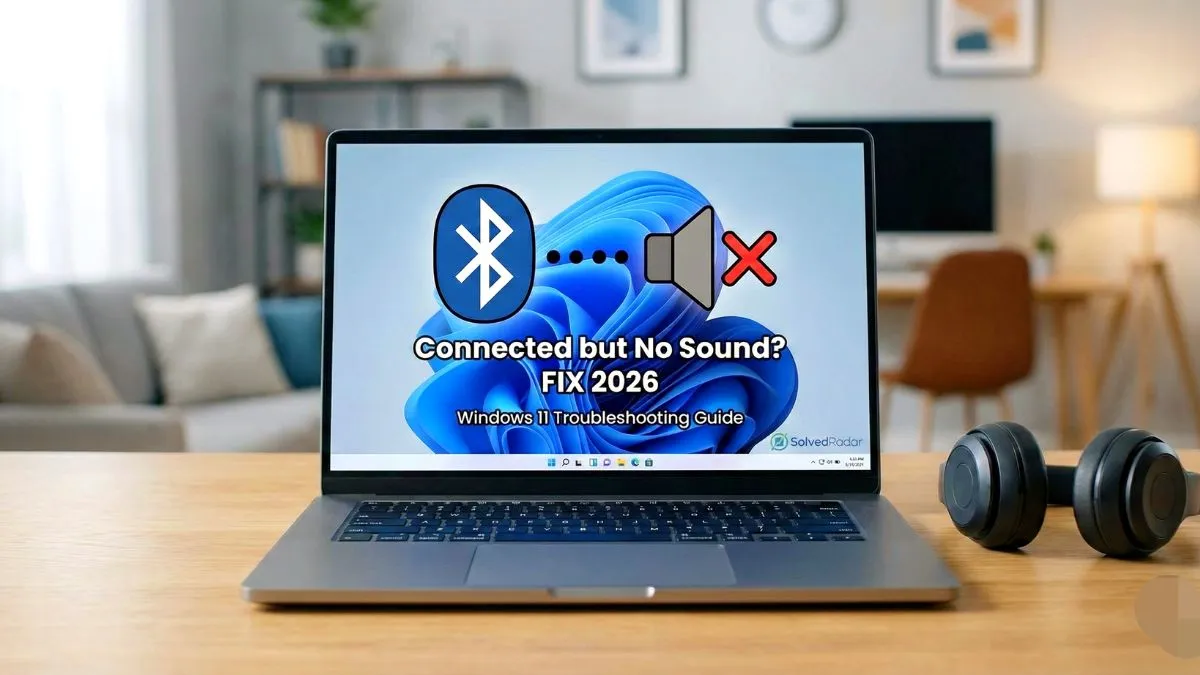
It is very frustrating when you have your bluetooth connected but no sound windows 11 computer. The system shows your headphones as paired, but there is zero sound coming through. This is a very common issue. You probably do not know if Windows is glitching or if your headphones are broken.
Most of the time, your hardware is perfectly fine. The problem is usually a wrong audio output selection, a stuck background service, or a driver error. You can fix all of these in a few minutes without any technical skills. Let us get your audio working again.
The Quick Fix: Check Your Output Device
Before trying deep system fixes, we need to check if Windows is actually sending the sound to your headphones.
- Right-click the speaker icon in your bottom right taskbar.
- Click on Open Volume mixer.
- Look at the Output device section.
- If it says Speakers, click on it and select your Bluetooth headphones from the list.
If your device is not listed or changing this setting did not work, move to the next steps.
Fix 1: Re-pair Your Bluetooth Device
Sometimes the connection process gets corrupted. Starting fresh is the easiest solution.
- Go to Settings, then Bluetooth & devices.
- Find your headphones in the list.
- Click the three dots next to the name and select Remove device.
- Turn your headphones off, wait 10 seconds, and turn them back on.
- Click Add device and pair them again.
Fix 2: Restart the Windows Audio Services
Windows relies on background services to manage sound. If these services crash, your audio stops working even if the Bluetooth connection is active.
- Press the Windows key and R key at the same time to open the Run box.
- Type services.msc and press Enter.
- Scroll down the long list until you find Windows Audio.
- Right-click on Windows Audio and select Restart.
- Wait a few seconds for it to reset.
- Find Windows Audio Endpoint Builder in the same list, right-click it, and select Restart.
Test your sound now. This solves the problem for most users.
Fix 3: Update Your Bluetooth Drivers
Outdated drivers cannot communicate properly with the newest Windows 11 updates.
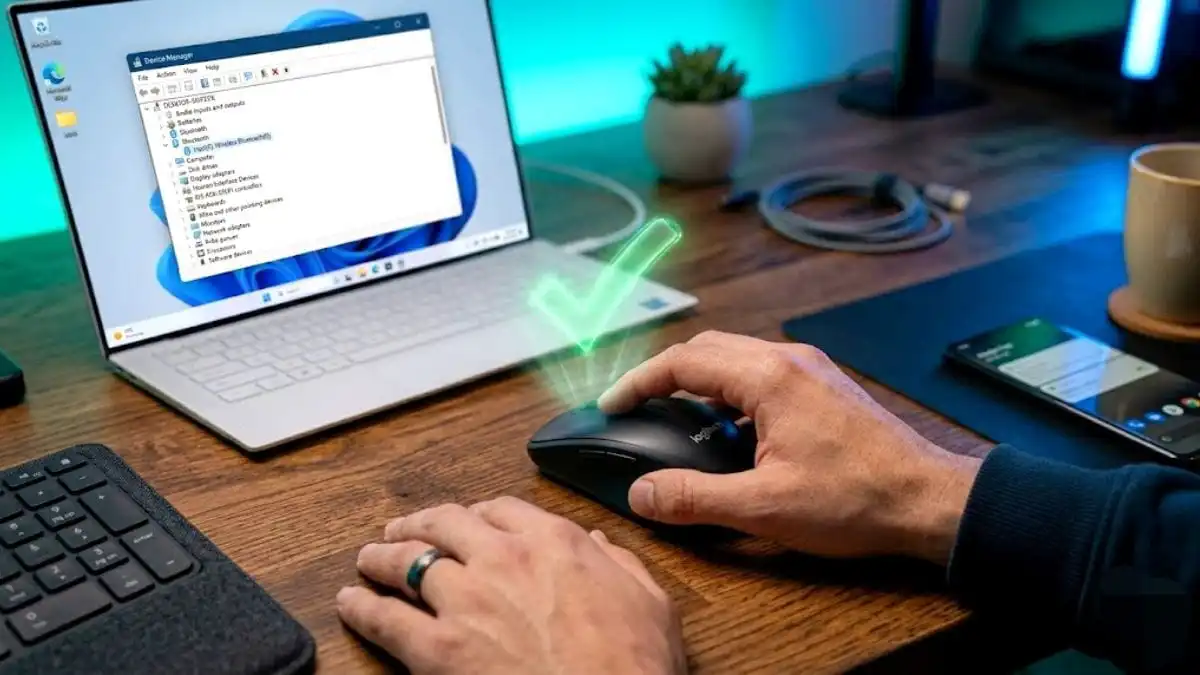
- Right-click the Start button and select Device Manager.
- Click the arrow next to Bluetooth to expand the list.
- Right-click your Bluetooth adapter name. It will usually say Intel, Realtek, or Qualcomm.
- Select Update driver.
- Click on Search automatically for updated driver software.
Restart your computer after it finishes and try playing a video.
Fix 4: Change the Audio Format
Windows might be trying to send high-quality audio that your Bluetooth headphones do not support.
- Right-click the speaker icon in your taskbar and select Sound settings.
- Scroll down and click on More sound settings.
- Right-click your Bluetooth headphones and choose Properties.
- Go to the Advanced tab.
- Under Default Format, click the dropdown menu.
- Change it to 16 bit, 44100 Hz or 16 bit, 48000 Hz.
- Click Apply and then OK.
Fix 5: Reinstall the Bluetooth Adapter
If updating the driver did not help, the existing driver files might be deeply corrupted. We need to delete them completely.
- Open Device Manager again.
- Expand the Bluetooth section.
- Right-click your main Bluetooth adapter and select Uninstall device.
- Check the box that asks to delete the driver software.
- Click Uninstall.
- Restart your PC.
When Windows boots up, it will automatically download a clean, fresh version of the driver.
Fix 6: Run the Audio Troubleshooter
Windows 11 has an automated tool that can scan for hidden audio routing problems.
- Go to Settings, then System.
- Click on Troubleshoot, then Other troubleshooters.
- Find Playing Audio and click the Run button next to it.
Let the tool scan your system and apply any suggested fixes.
The Bottom Line
Bluetooth issues on Windows 11 are almost always related to software settings rather than broken hardware. Re-pairing the device and restarting the audio services will fix the problem in most cases. Keep your Windows system updated to prevent these bugs from coming back.