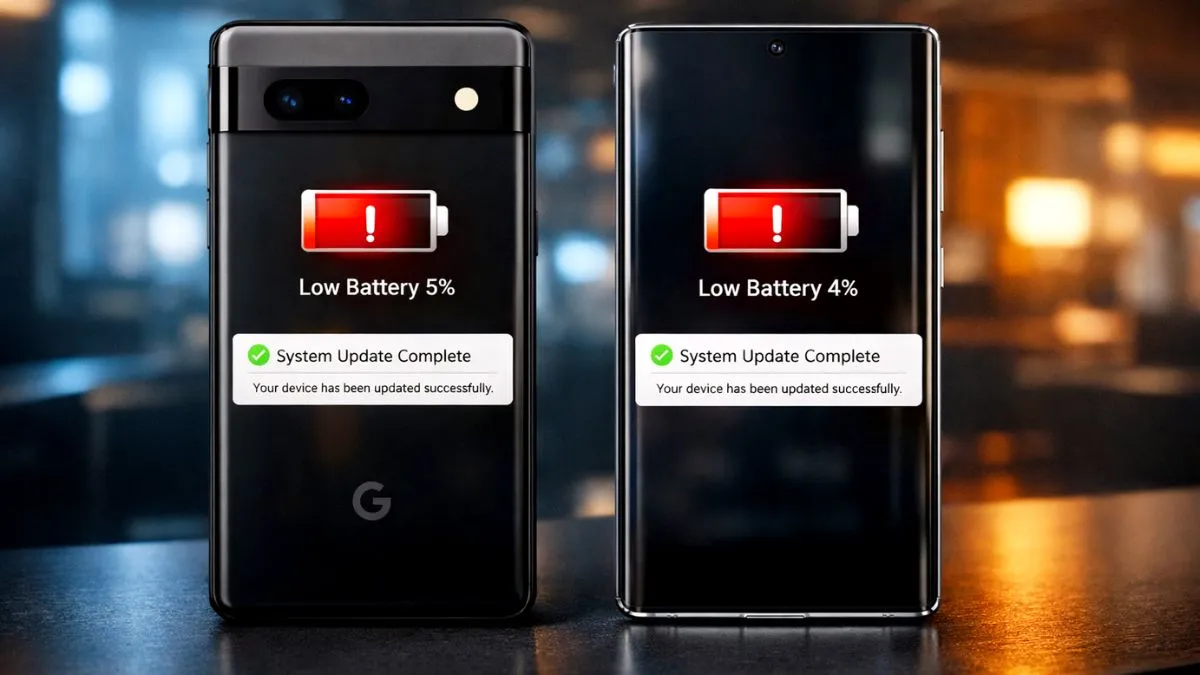
Welcome to SolvedRadar. Are you dealing with severe pixel 8 battery drain after android 16 update? You probably downloaded the new software hoping for cool new features and a smoother experience. Instead, your phone is dying before dinner and feeling unusually warm in your pocket.
Do not panic. Your Pixel 8 battery is not permanently damaged.
When Google releases a massive update like Android 16, it changes how the system handles background apps, location services, and syncing. Sometimes, the software just gets confused. Here is our direct, step-by-step guide to finding the battery thieves and stabilizing your Pixel 8 right now.
Step 1: The “Optimization” Waiting Period
Before we change any settings, you need to know what happens right after an update.
When you install Android 16, your phone spends the next 24 to 48 hours optimizing all your apps to work with the new code. This heavy background processing eats a lot of battery.
- The Fix: If you updated less than two days ago, just plug your phone into the charger, connect it to Wi-Fi, and give it some time to finish its background work.
Step 2: Hunt Down the App Vampires
The most common cause of battery drain after an update is outdated apps. If an app is not optimized for Android 16, it will panic, run constantly in the background, and drain your battery.
How to find and fix them:
- Go to Settings > Battery > Battery usage.
- Scroll down and look at the list of apps. If a random app like a game or social media is using 30% of your battery while you aren’t even using it, you found the culprit.
- Open the Google Play Store.
- Tap your Profile icon top right > Manage apps & device.
- Tap Update all. Updating your apps ensures they have the latest Android 16 compatibility fixes.
Step 3: Tame Background Sync & Location
Sometimes, Android 16 gets stuck constantly checking your location or syncing your emails. Let’s calm the system down.
- Go to Settings > Network & internet. Turn off your Wi-Fi and turn it back on. This simple toggle can fix background syncing loops.
- Go to Settings > Location > App location permissions.
- Look for apps that have permission set to “Allowed all the time.” Change apps that don’t need constant tracking (like shopping or food delivery apps) to “Allow only while using the app.”
Step 4: The Simple System Refresh Restart
It sounds too easy, but a simple restart clears out temporary system files and stops rogue background processes that got stuck during the Android 16 installation.
- Press and hold the Power button and Volume Up button at the same time, then tap Restart. Do this at least once a day for the first few days after the update.
Step 5: The Last Resort (Factory Reset)
If it has been a week, you have updated all your apps, and your Pixel 8 is still dropping 15% battery every hour, a deep system file might be corrupted. A Factory Reset will give your phone a completely clean slate with Android 16.
Note: This WILL delete everything on your phone. Please back up your photos to Google Photos and your data to Google Drive before doing this.
- Go to Settings > System > Reset options > Erase all data factory reset.
The Bottom Line
Software updates are meant to make your phone better, not worse. By updating your apps and restricting unnecessary background location usage, your Pixel 8 should go back to its amazing all-day battery life.
Disclaimer: These troubleshooting steps are for educational purposes. SolvedRadar is not responsible for data loss. Always back up your important files before a factory reset.