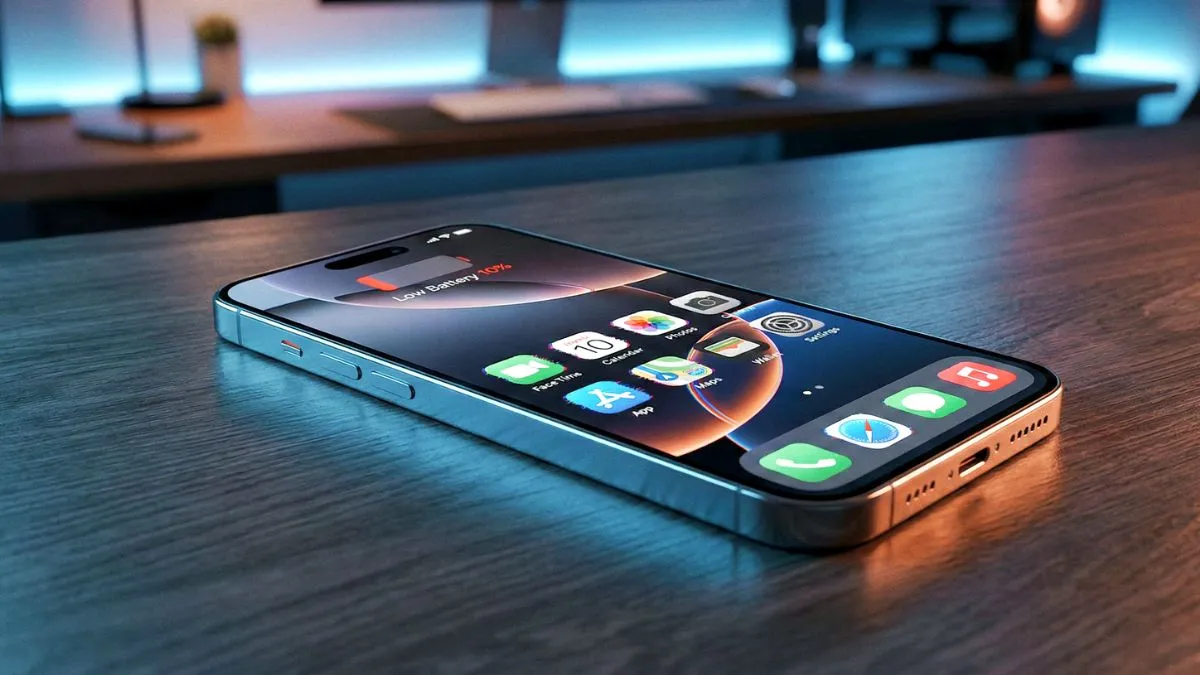
Welcome to SolvedRadar. Are you experiencing severe ios 26.2.1 battery drain and random app crashes on your new iPhone 17 or 17 Pro? You bought a premium flagship for its amazing battery life and the beautiful new Liquid Glass UI, but right now, your phone feels more like a pocket heater.
Do not worry, you are not the only one. Forums like Reddit and MacRumors are flooded with users reporting 20-40% battery drops overnight and apps freezing after the late January update.
The good news? Your physical battery is perfectly fine. The software is just having a messy optimization phase. Here is our no-nonsense, step-by-step guide to stabilizing your iPhone 17 immediately.
Step 1: The 48-Hour Indexing Phase
Before you panic, check the calendar. Did you install the update less than 24 hours ago?
When you install a major point update like iOS 26.2.1, your iPhone goes into overdrive in the background. It is re-indexing files for Spotlight search and processing photos for the new Apple Intelligence features. This burns a lot of CPU power and generates heat.
- The Fix: Do not stress the phone with heavy games or benchmarks right now. Plug your iPhone into the charger, connect to Wi-Fi, and leave it overnight to finish its background homework.
- Pro Tip: Most users report that battery life returns to normal after 2 to 3 days. If it has been a week and it is still draining, move to the next step.
Step 2: The Magic “Force Restart”
If your screen is freezing or apps are constantly crashing, a normal “slide to power off.” is not enough. You need to clear the temporary cache from the RAM.
How to Force Restart your iPhone 17 & 17 Pro:
- Quickly press and release the Volume Up button.
- Quickly press and release the Volume Down button.
- Press and hold the Side Power Button and do not let go until you see the Apple Logo appear on the screen.
This cuts power to the logic board and forces a completely fresh boot. Doing this once will clear out many update bugs.
Step 3: Find the Battery Thief
iOS 26.2.1 has some compatibility issues with older apps that have not updated their code for the new AI framework.
- Go to Settings > Battery.
- Scroll down to view your battery usage by app.
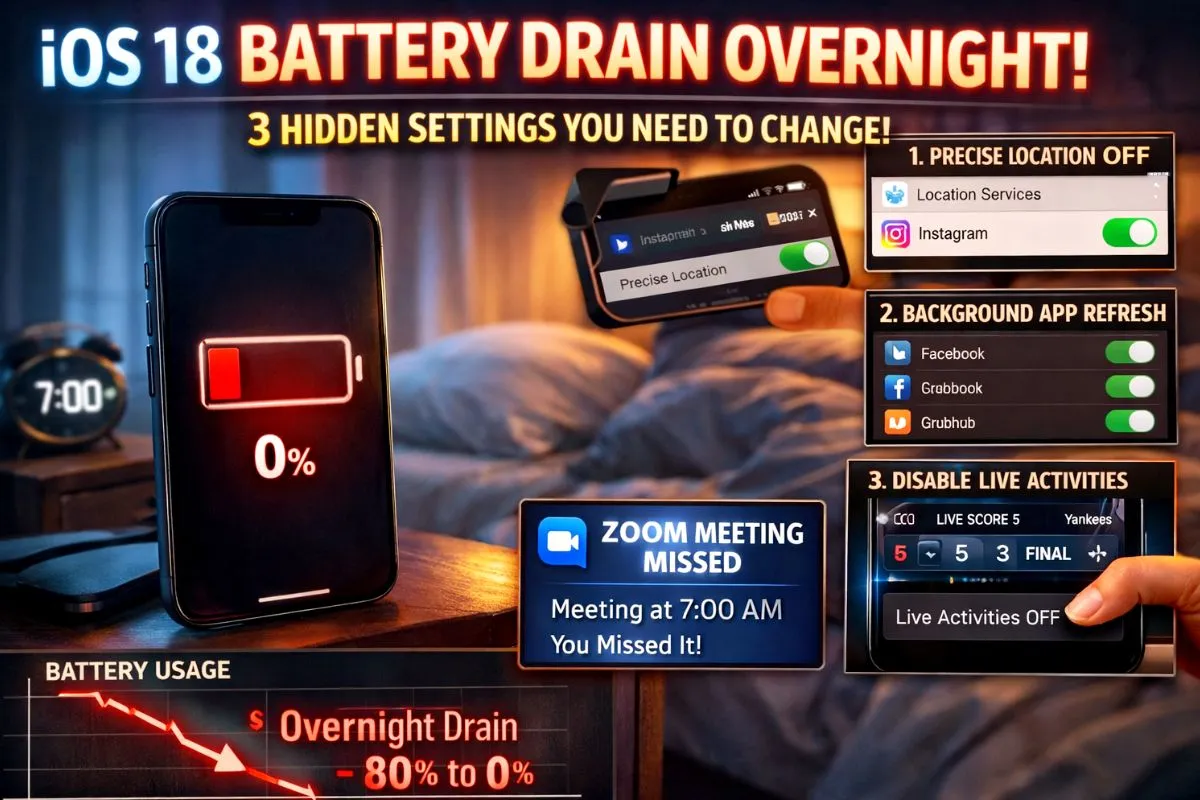
- Look for apps with high Background Activity. Is WhatsApp, Reddit, or a game running for hours in the background?
- The Fix: Go to Settings > General > Background App Refresh and turn it OFF for those specific apps.
The System Services Bug: Scroll to the very bottom of the battery list. If “System Services” is using a huge chunk of power, your GPS might be stuck in a loop.
- The Fix: Go to Settings > Privacy & Security > Location Services. Toggle it OFF, wait 10 seconds, and turn it back ON.
Step 4: Fix Liquid Glass App Conflicts
The new Liquid Glass UI in iOS 26 is beautiful, but third-party apps need to be optimized for it. If an app crashes every time you open it, it is likely fighting with the new operating system.
- Update Everything: Go to the App Store > tap your Profile icon > tap Update All.
- The Re-install Trick: If an app like Instagram keeps freezing even after an update, delete it completely and reinstall it. This forces the app to download a fresh cache that is compatible with iOS 26.2.1.
Step 5: Reset All Settings Not Your Data
If you are still facing severe battery drops, Wi-Fi disconnecting, or 5G failing, the update might have corrupted your network configuration files.
Note: This step is a bit annoying because it forgets your Wi-Fi passwords and wallpaper layout, but it WILL NOT delete your photos, messages, or apps.
- Go to Settings > General > Transfer or Reset iPhone.
- Tap Reset > choose Reset All Settings.
The Bottom Line
We know it is frustrating to babysit the battery on a brand-new iPhone 17. However, in 90% of cases, waiting out the 48-hour indexing period and doing a Force Restart Step 2 solves the problem completely. Keep your apps updated, and your phone will be back to normal soon.
Disclaimer: The troubleshooting steps provided in this guide are for educational purposes. SolvedRadar is not responsible for any data loss. Always back up your iPhone to iCloud before performing system resets.